
Using the date picker
The date picker lets you specify the query period for a report. Beyond simple date selection, it also supports comparison analysis against another period.
1. Open the date picker
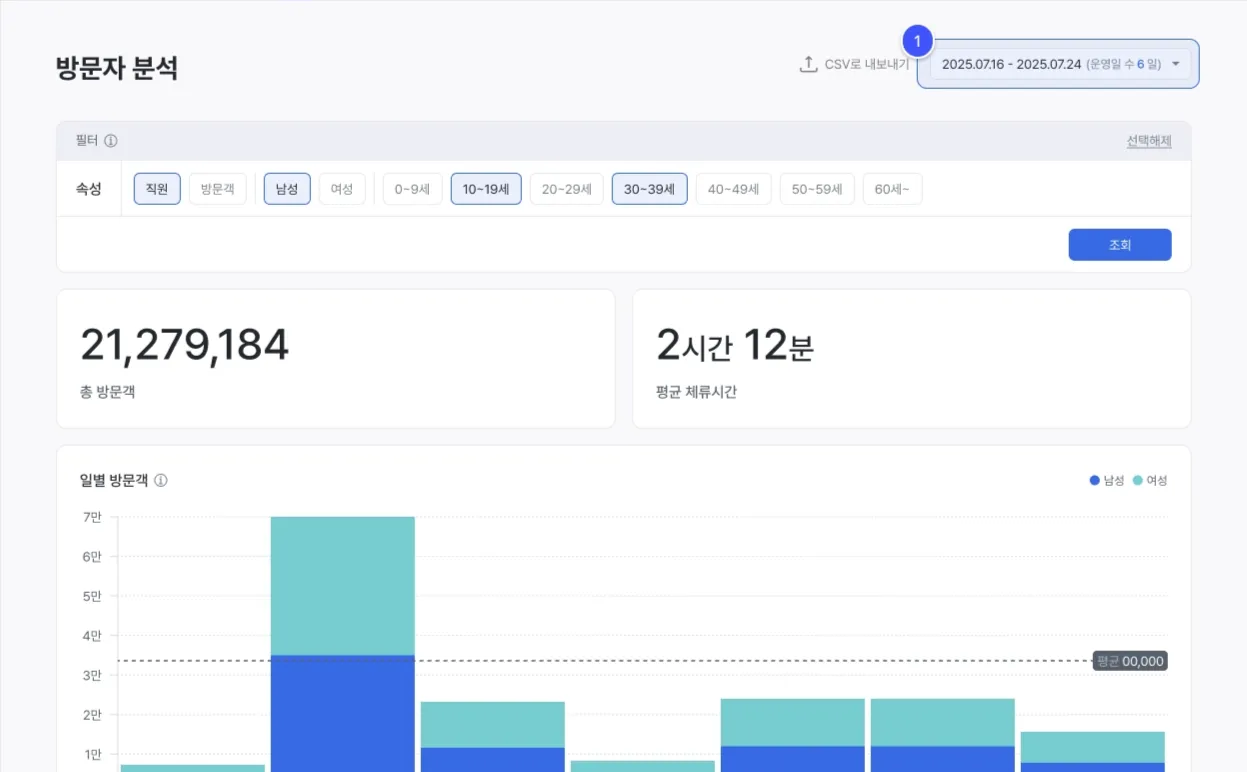
Clicking the Date button at the bottom-right of the top navigation bar opens the date picker.
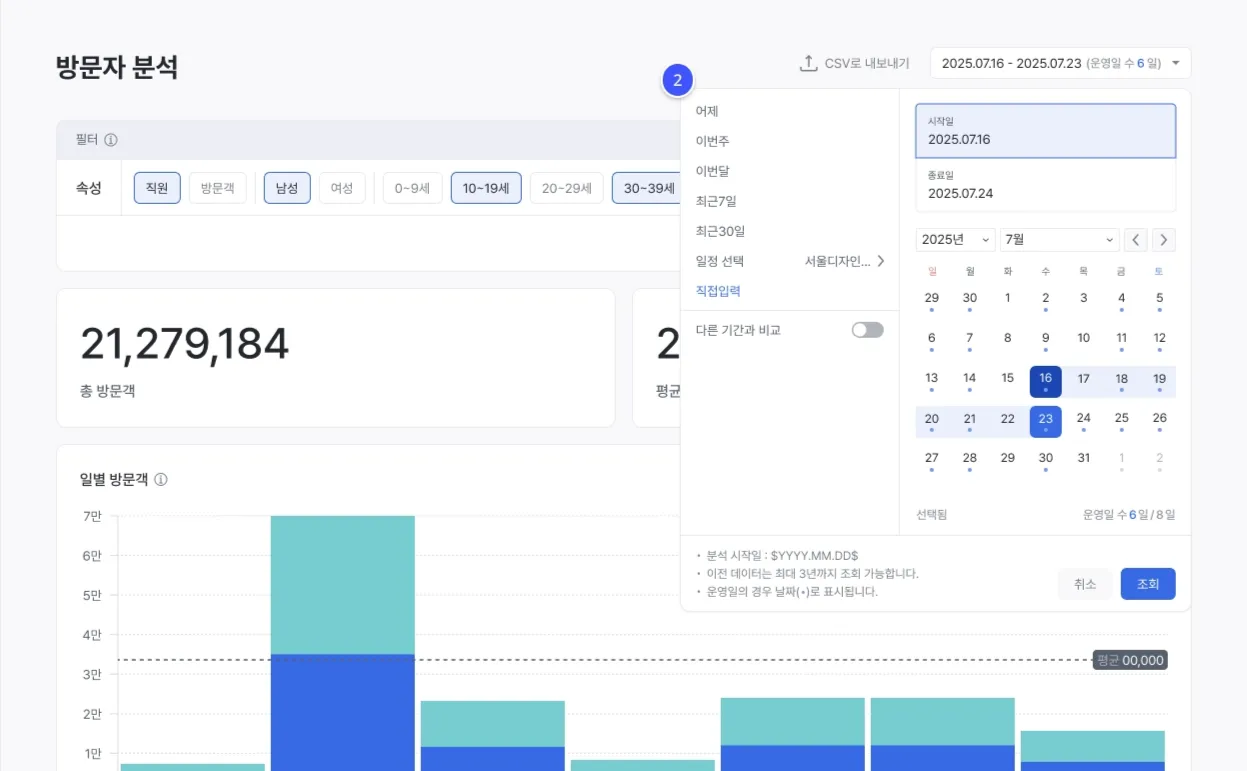
Use the dropdown date picker to specify the date range you want to query.
2. Date picker details
2.1 Use the preset options
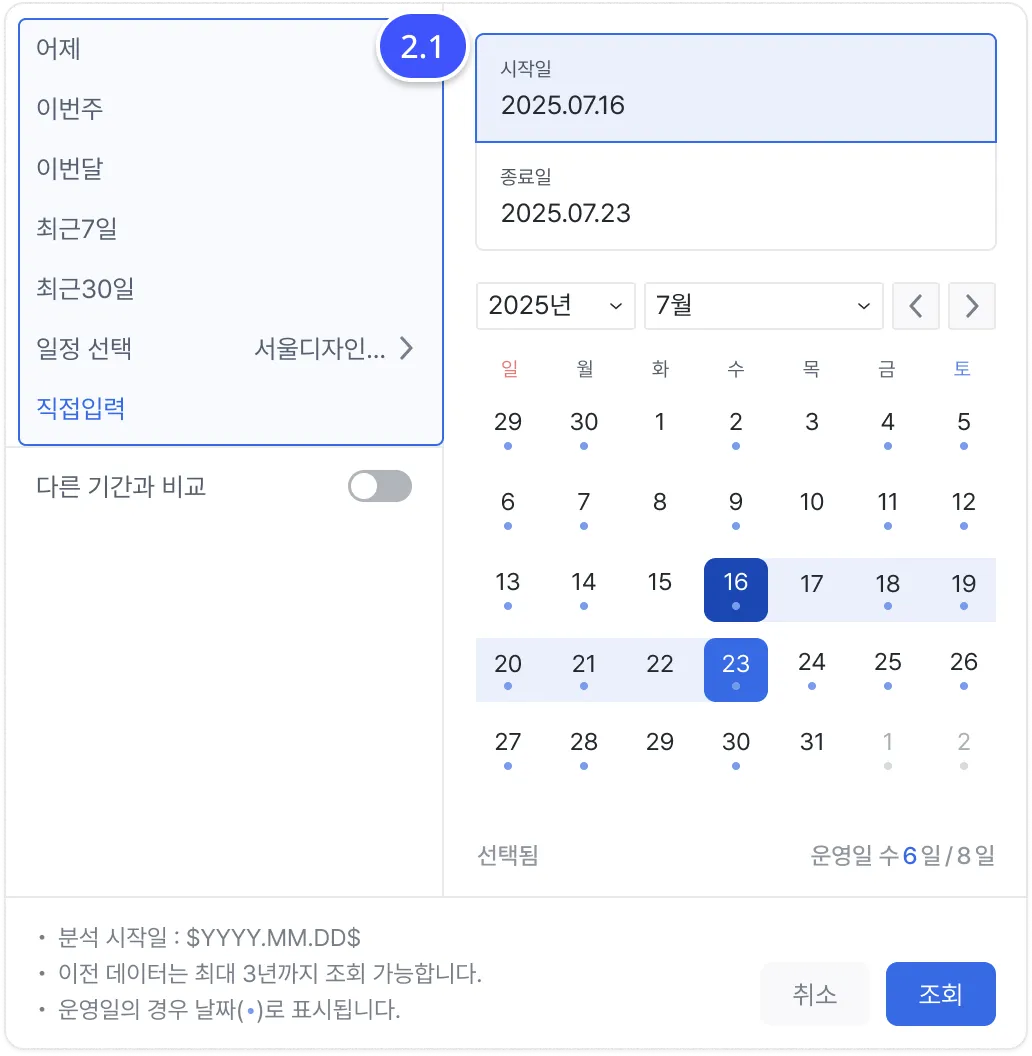
Click a preset period at the top of the date picker to automatically select that range. Available options:
- Yesterday
- This week
- This month
- Last 7 days
- Last 30 days
- Select event (a configured event period)
- Custom (specify start and end dates manually)
Click the option you want to apply that period instantly without picking dates manually.
2.2 Pick start and end dates manually
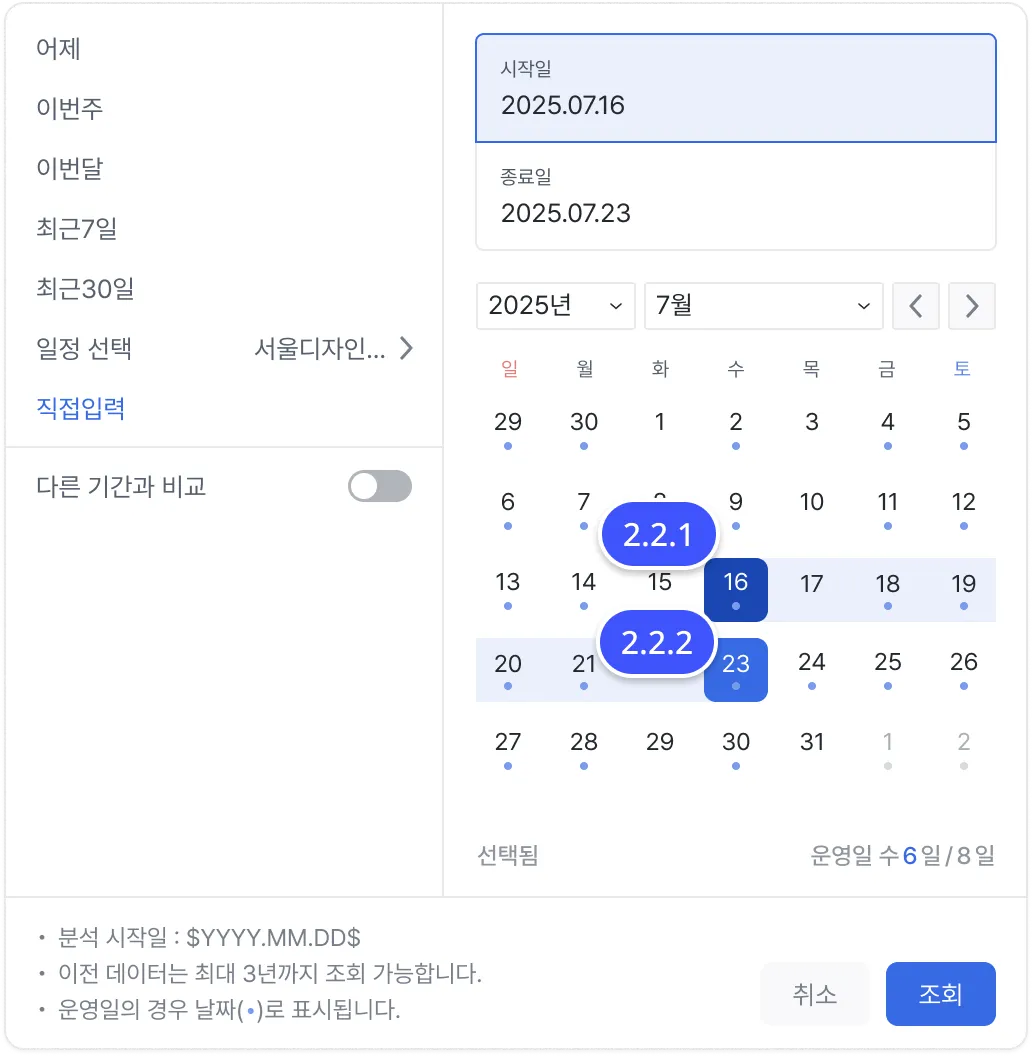
- Start date: The start date on the date picker calendar.
- End date: The end date on the date picker calendar.
Custom date range
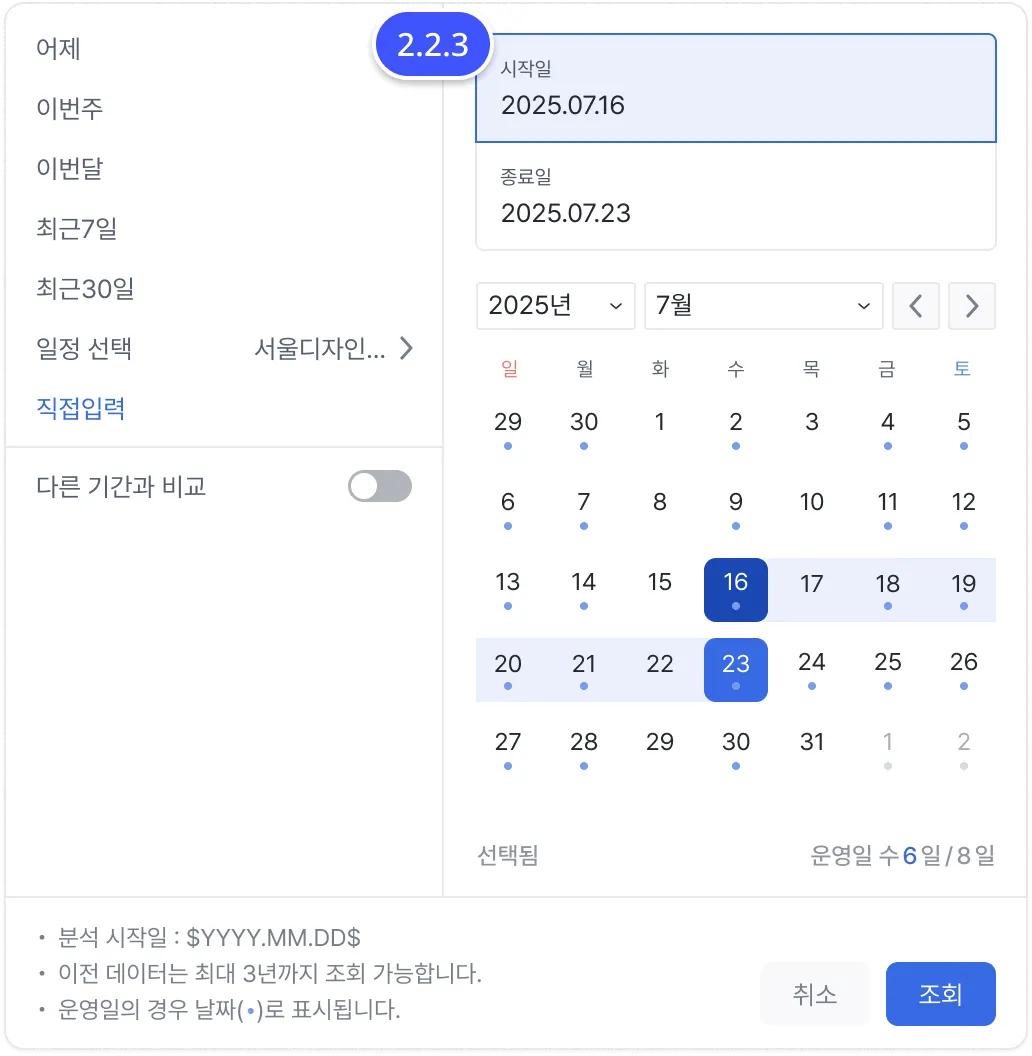
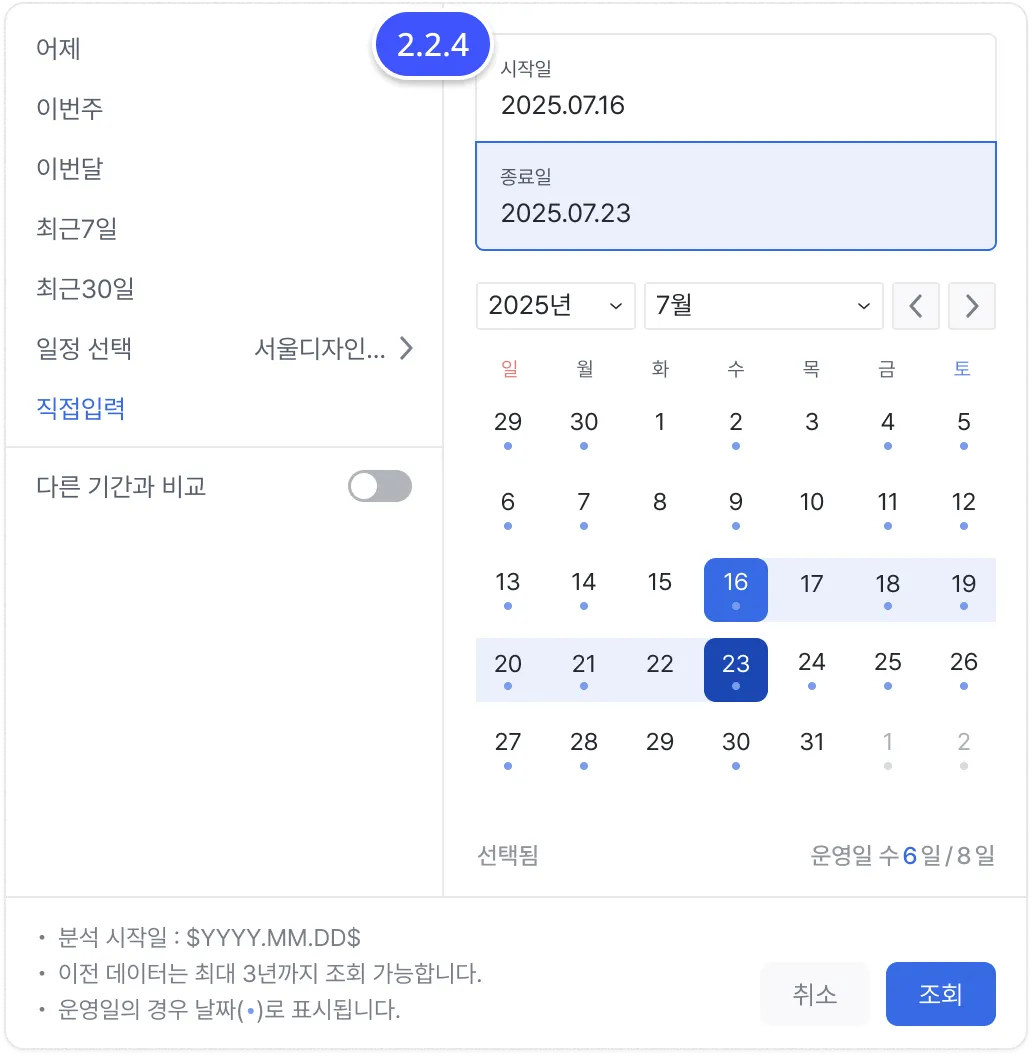
- Click Select start date and pick the date you want.
- Click Select end date and pick the final date.
- The selected range is highlighted on the calendar and applies as soon as you click Query.
2.3 Change the calendar month and year
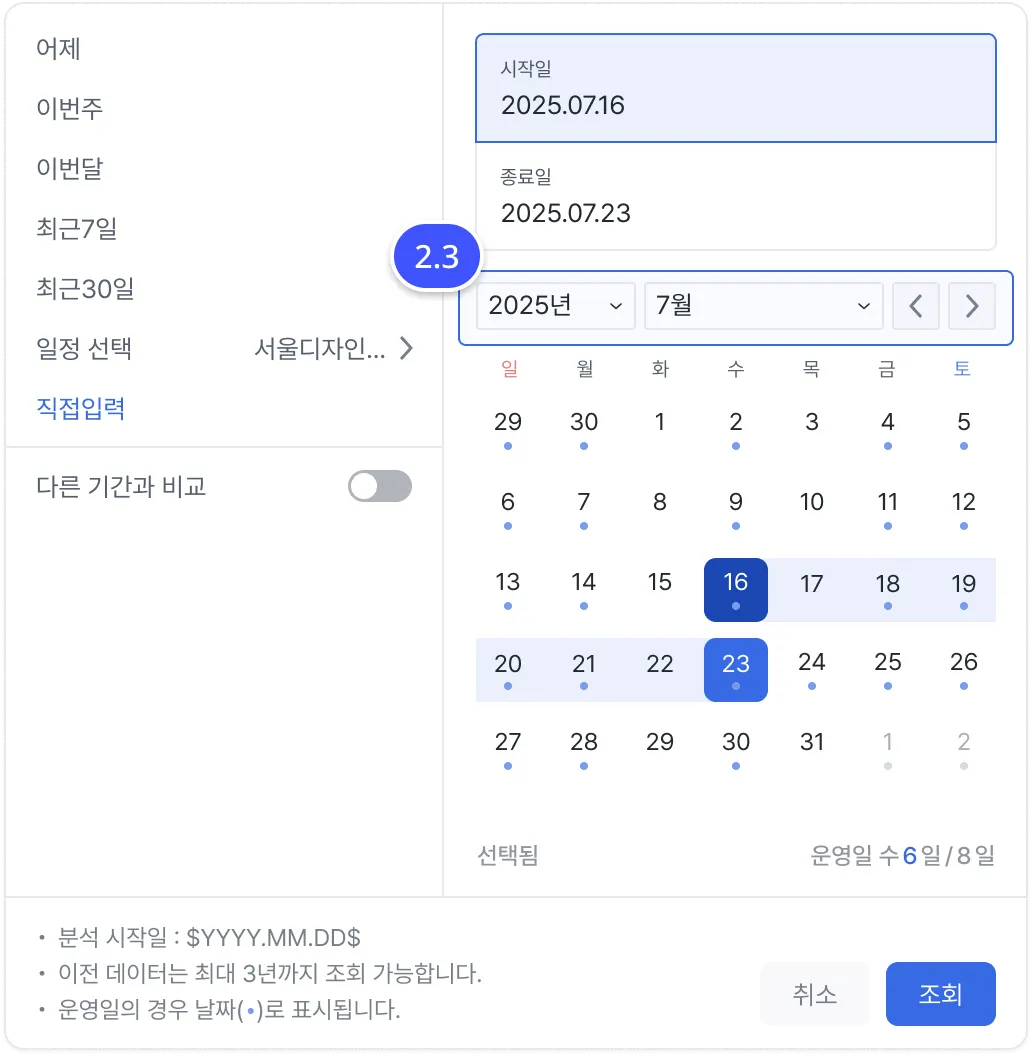
You can change the year and month using the dropdowns at the top of the calendar and the left/right arrow buttons.
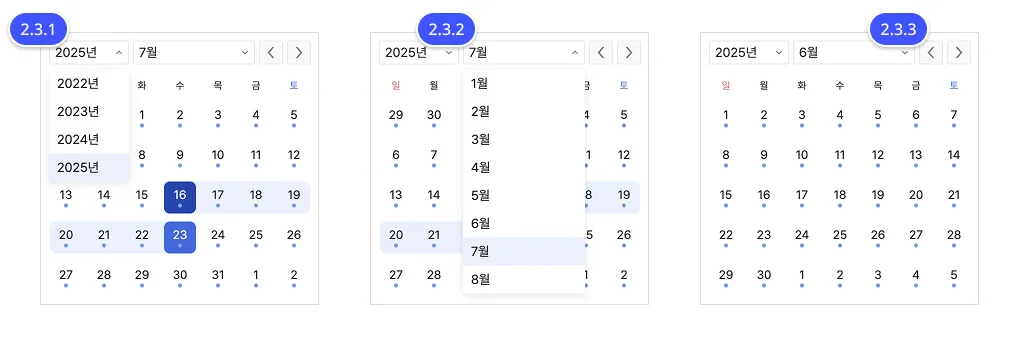
Change the year
- Click the year dropdown at the top of the screen to see the list of years available.
- Click the year you want, and the calendar refreshes to that year’s months.
Change the month
- Click the month dropdown to pick a month directly.
- Or use the ◀ / ▶ arrow buttons to move to the previous/next month.
2.4 Check operating days
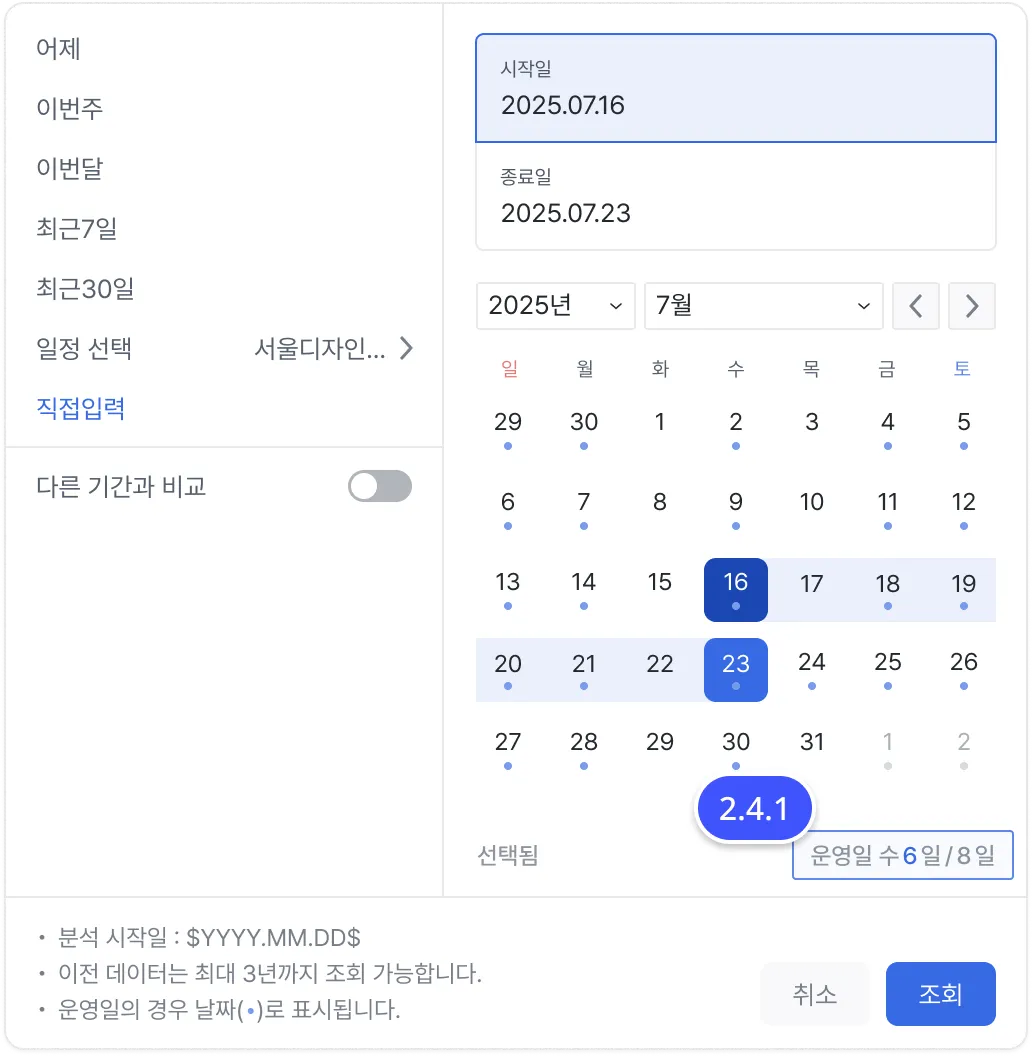
Operating day indicator
- Days that are operating days are marked with a blue dot (●) under the date.
- This makes it easy to see your store’s actual operating days at a glance.
Operating days / queried days
- After picking a range, the date picker shows the count at the bottom in the format
operating days / queried days. - Example:
6 days / 8 days→ 6 of the 8 selected days are actual operating days.
2.5 Compare against another period
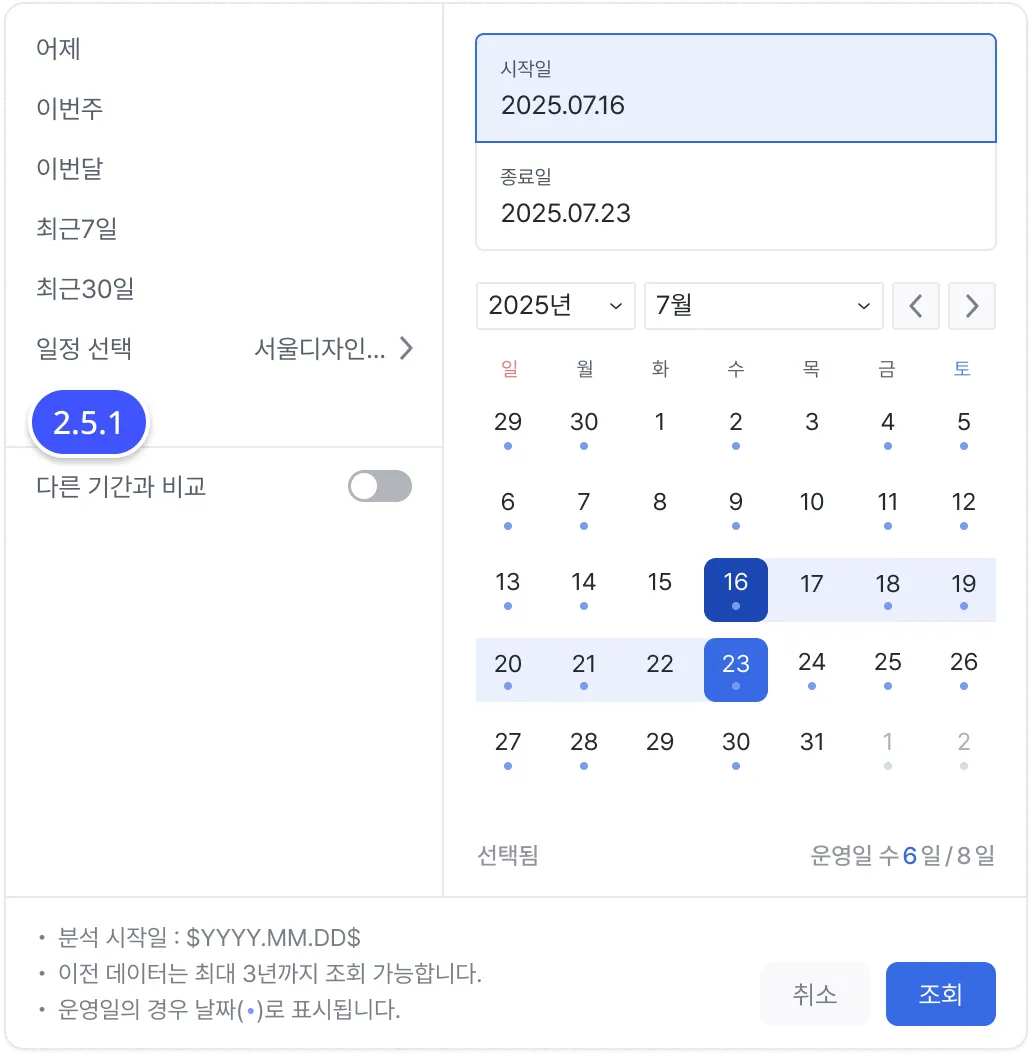
When you need a comparison analysis, enable Compare to another period.
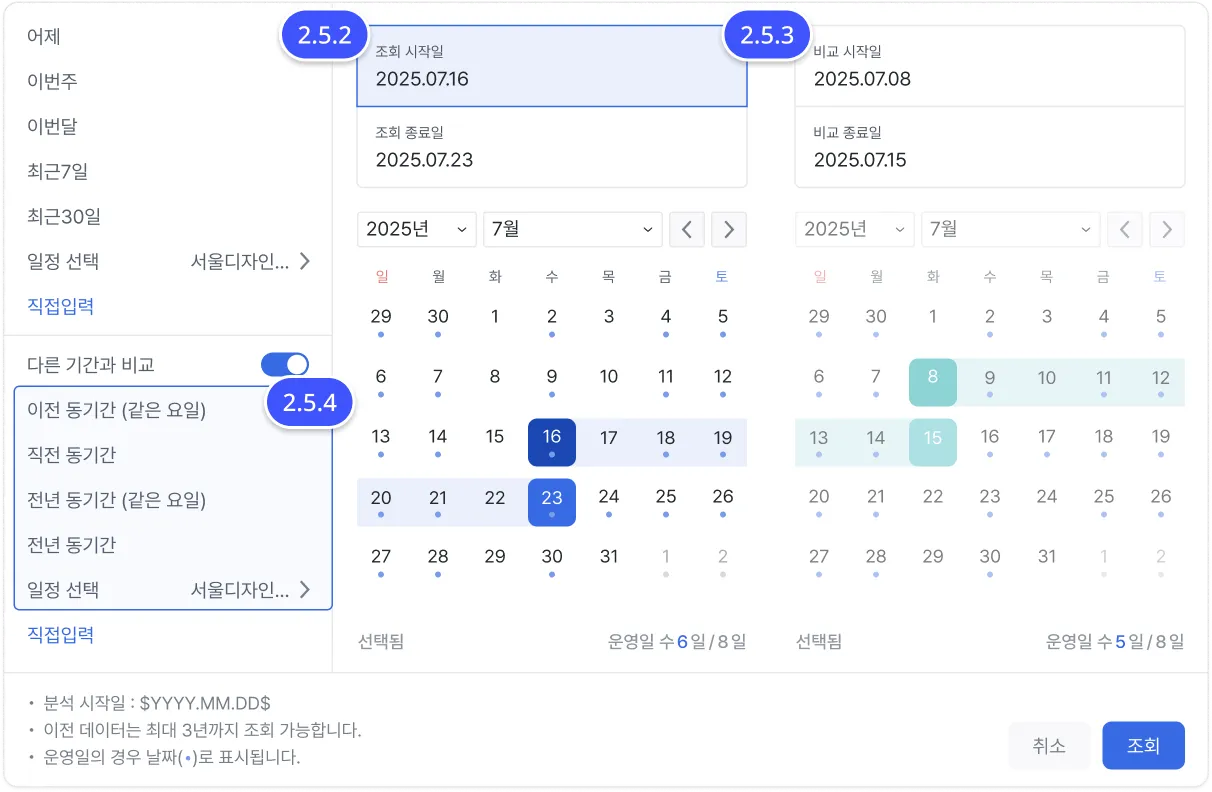
- Pick a query date (base period) and a comparison date (the period to compare against) separately.
- View the data for both periods side by side.
- Use the preset periods under the comparison section to auto-fill the comparison range.
Available options:
- Same period prior (matching weekdays)
- Immediately preceding period
- Same period last year (matching weekdays)
- Same period last year
- Select event (a configured event period)
- Custom (specify start and end dates manually)