
Zone settings
What it does
- Traffic zones are areas along store paths used to analyze visitors’ visits, dwelling, and pickup behavior.
- Non-traffic zones target spaces that can’t be walked through — such as shelves — and let you analyze visitor interest and behavior.
Zone types at a glance
| Category | Zone type | Description | Reports it powers |
|---|---|---|---|
| Traffic | General | Divide the store into broad units to capture major movement trends and traffic | Zone analysis / Representative paths / Zone-to-zone traffic |
| Traffic | Interest | Measure dwelling in front of shelves to understand interest and dwell patterns | Zone interest analysis / Visitor paths / Heatmap / Customer touchpoints / Funnel |
| Traffic | Checkout | Determine purchase conversion based on extended dwelling at the checkout | Purchase conversion analysis |
| Traffic | Staff | Zones only staff can access — used to exclude staff from analysis | Most reports excluding line analysis |
| Traffic | Seating | Measure how seats are used to analyze occupancy | Seat occupancy |
| Non-traffic | Shelf | Use non-walkable shelves as the basis for analyzing product interest and merchandising effectiveness | Funnel analysis / Shelf analysis / Shelf heatmap |
Zone settings screen (common)
1. Open the zone settings screen

Click the Settings button at the bottom-left of the screen to go to the Settings page.
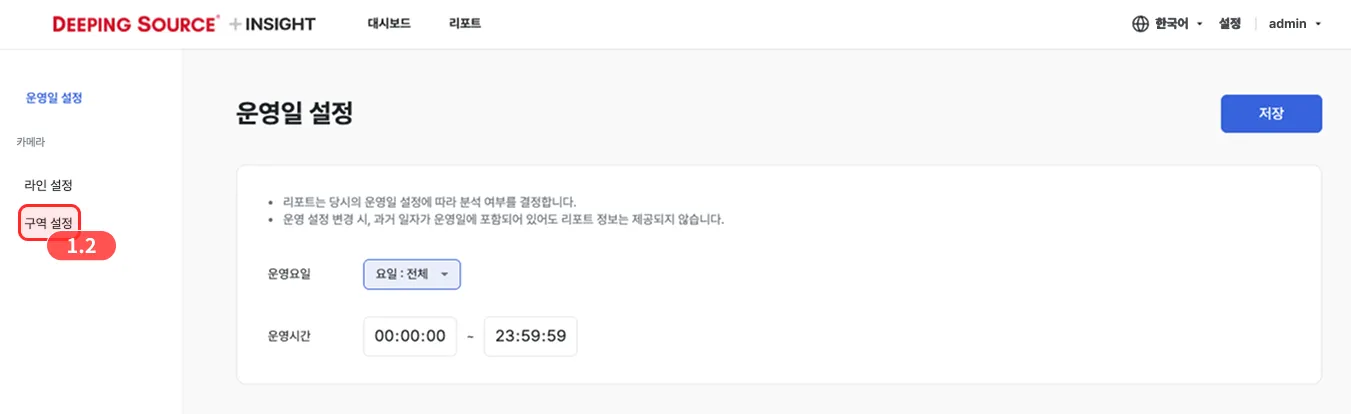
In the left-hand menu of the Settings page, click the Zone settings button to open the zone settings screen.
2. Zone settings screen layout
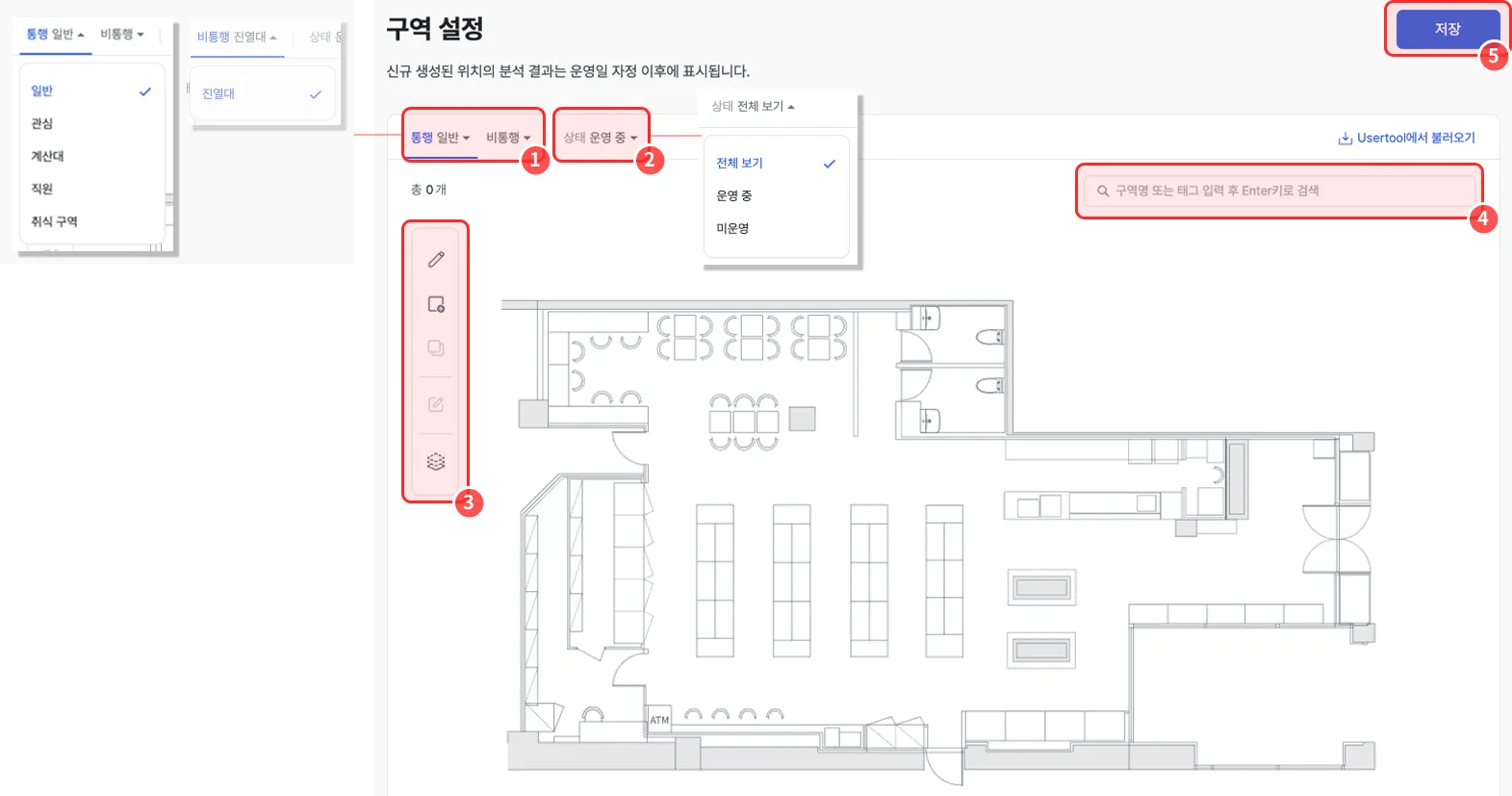
- Pick the traffic / non-traffic category based on the report you want to power.
- Use the active / inactive filter to show only zones in a given operational state.
- Use the drawing tools to add or edit zones.
- Use the search box to find zones by name or tag keyword.
- Click the Save button to confirm zones.
Drawing tool reference


3. Confirm the zone
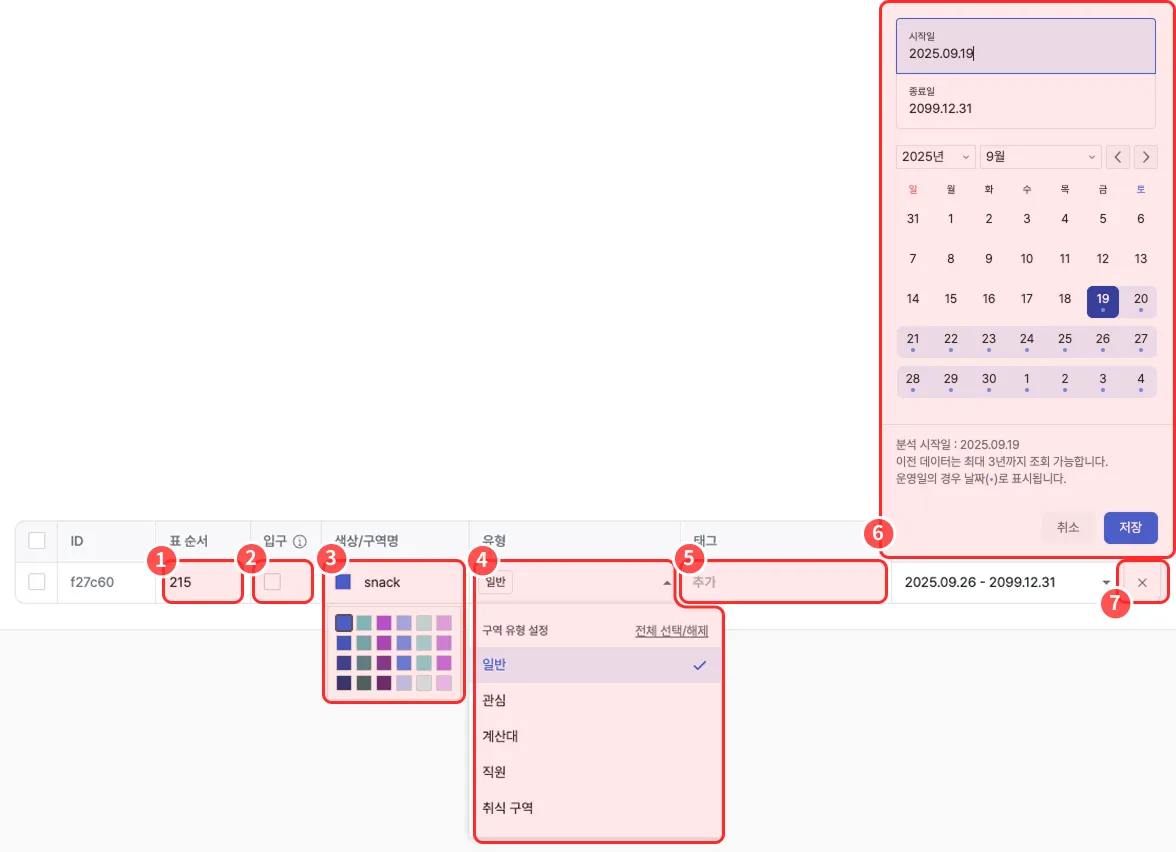
- Edit the table order to change the order in which data is displayed.
- For zones where customers first enter, tick the entrance checkbox to designate them as entrance zones.
- Once an entrance zone is set, the representative-paths report becomes available.
- You can designate multiple entrance zones.
- Set the zone’s color and name.
- To change or add zone types, select or deselect zone types.
- After picking the zone type, you can add detailed attributes as tags (keywords) to make zones easier to search and manage.
- Tags not assigned to any zone are deleted automatically.
- This field is optional, so you can leave it blank.
- Set the zone’s operating period.
- For new zones, the start date defaults to
todayand the end date to2099.12.31. - Zones whose operating period has ended move to the inactive tab.
- For new zones, the start date defaults to
- To delete a zone you’ve drawn, click the X button.
Setting up traffic zones
General zones
Reports it powers:
Zone analysis,Representative paths,Zone-to-zone traffic
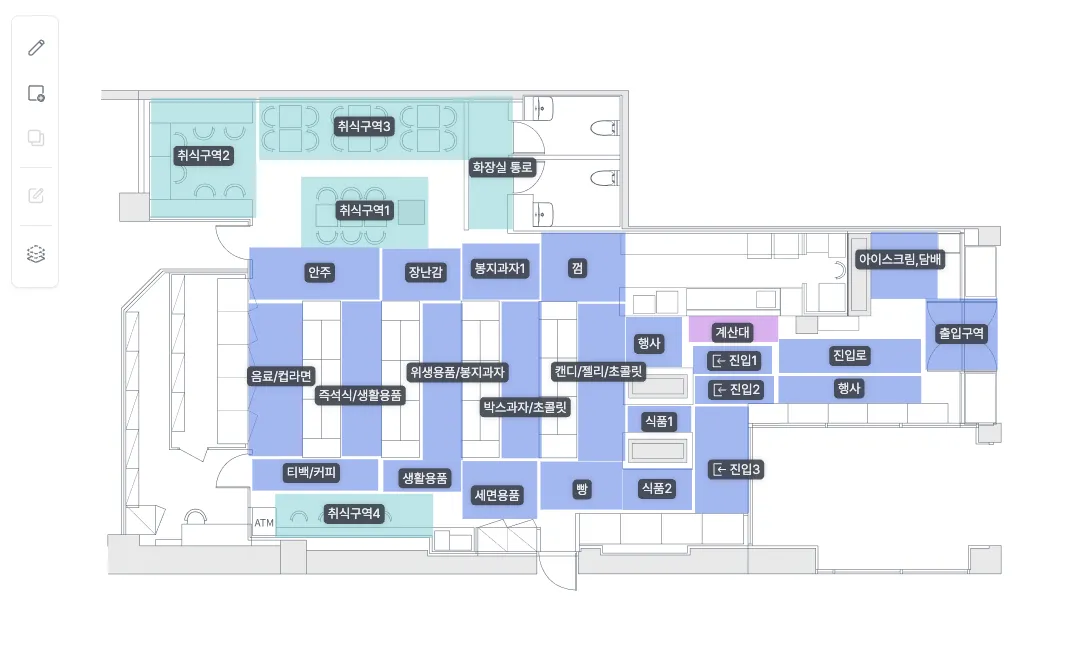
General zones aren’t meant for detailed shelf-level analysis — they capture customers’ larger movement (Flow) across the store.
- Divide the store into broad, non-overlapping units.
- Splitting it into narrow units makes overall traffic harder to read and reduces the meaning of dwell time.
Interest zones
Reports it powers:
Zone interest analysis,Visitor paths,Heatmap,Customer touchpoint analysis,Funnel analysis
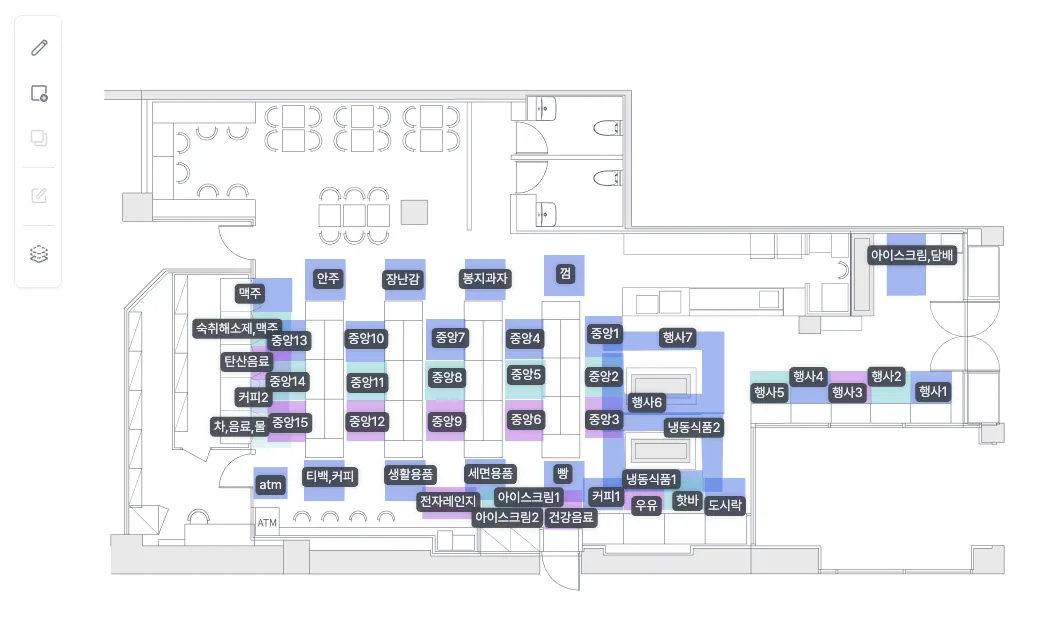
Interest zones are designed to analyze the moments when customers actually face a product or shelf.
- Designate the area immediately in front of a shelf so dwelling, attention, and pickup data are recorded.
- Draw the zone right in front of the shelf where visitors examine items in detail as a single interest zone.
Checkout zones
Reports it powers:
Purchase conversion analysis
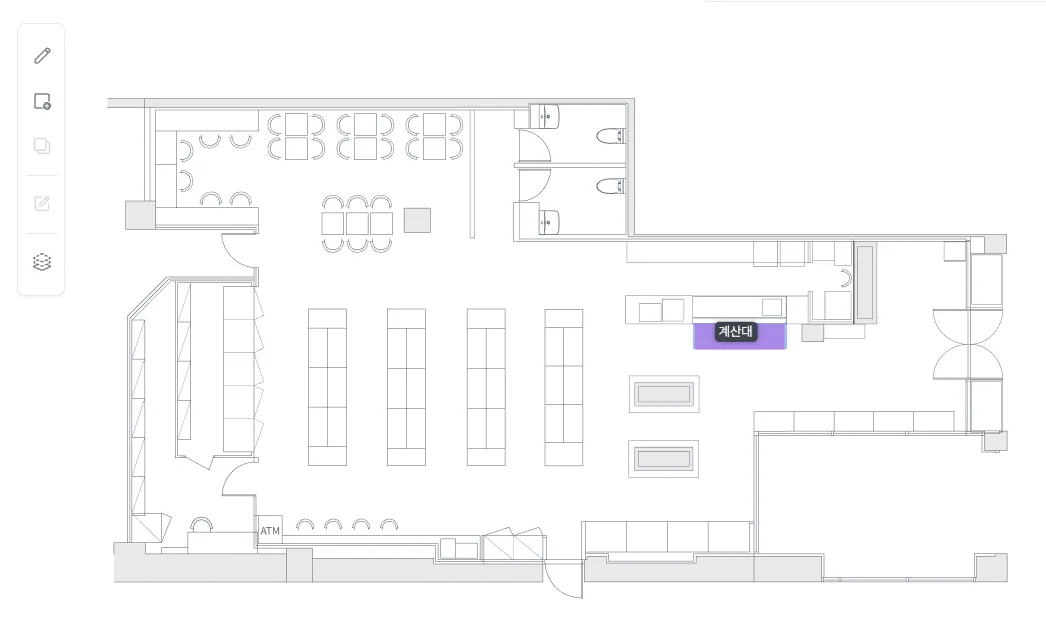
- Determine purchase based on dwelling in the walkable area in front of the checkout.
- These are typically drawn at the checkout area; dwelling beyond a threshold counts as a purchase.
Staff zones
Reports it powers:
Line analysis,Zone analysis,Visitor paths,Representative paths,Zone-to-zone traffic,Heatmap,Time-of-day heatmap,Zone interest analysis
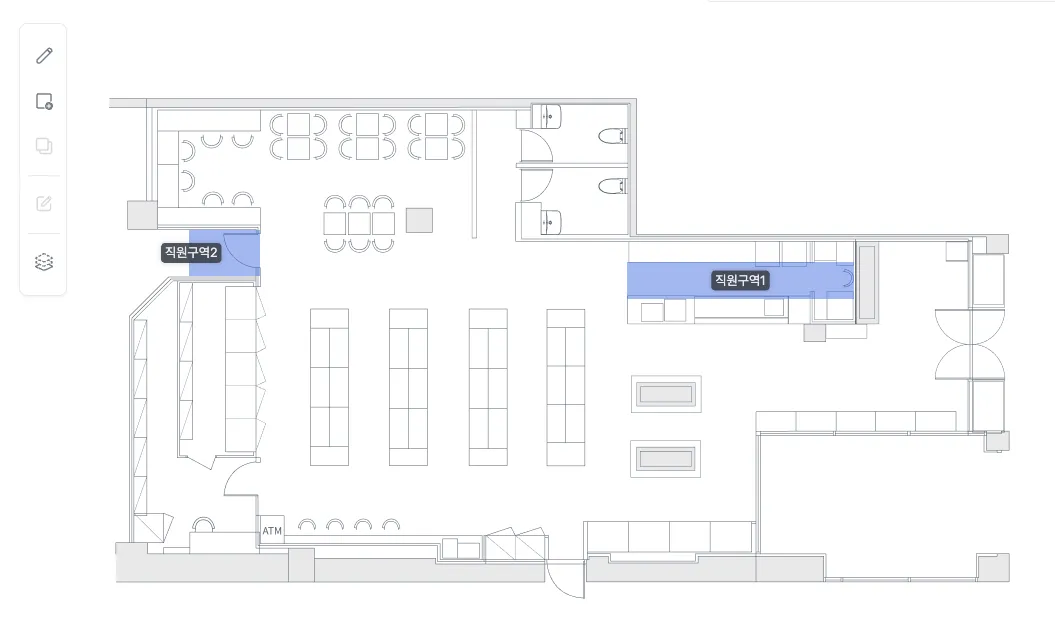
- Use this zone type to determine whether a person detected by CCTV is a staff member.
- Draw it where only staff can access; anyone with a record of passing through is treated as staff.
Seating zones
Reports it powers:
Seat occupancy
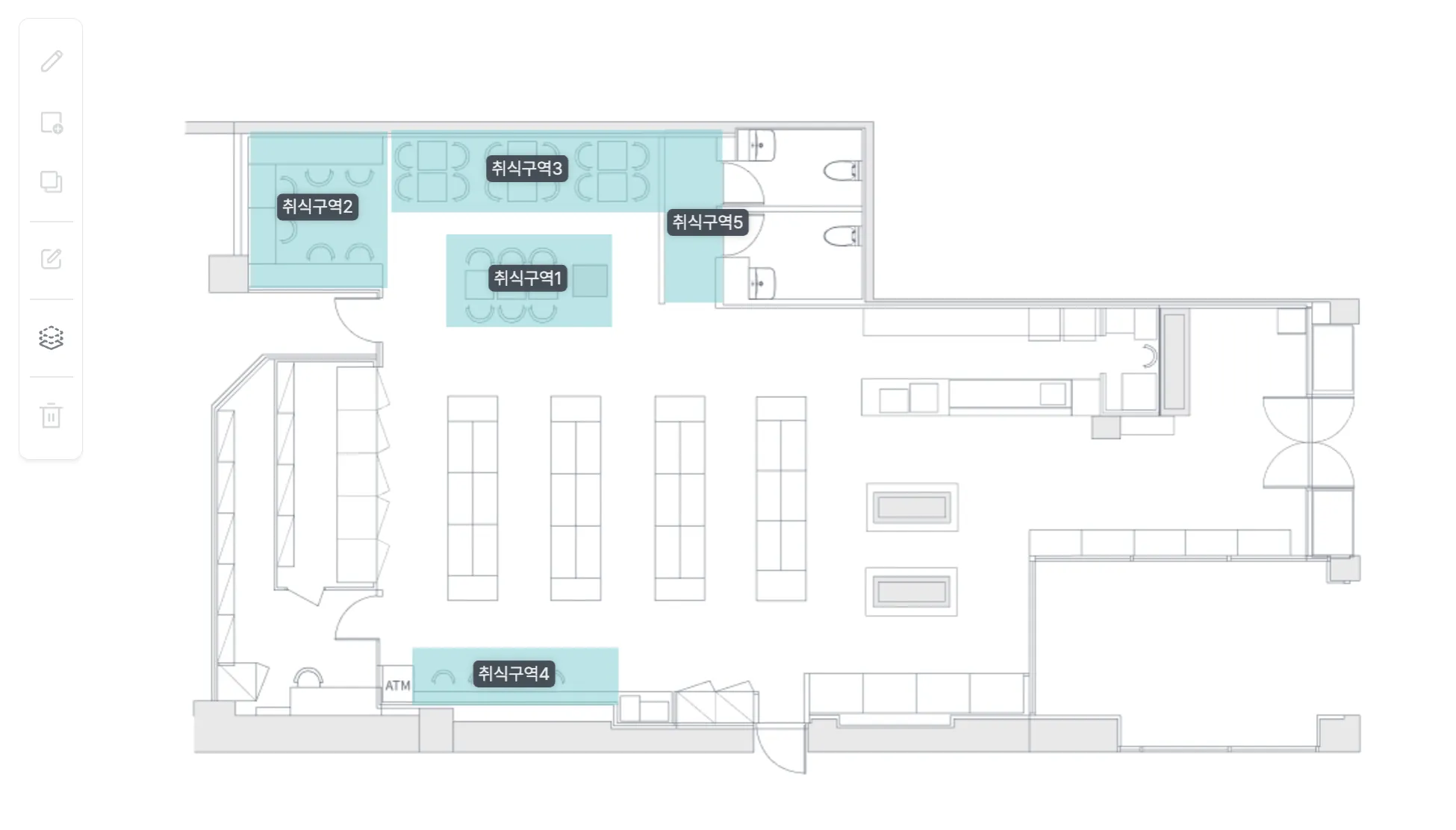
- Use this zone type to see how heavily the seats inside the zone are actually used.
- Draw zones where visitors actually use seats as seating zones.
Setting up non-traffic zones
Shelf zones
Reports it powers:
Funnel analysis,Shelf analysis,Shelf heatmap
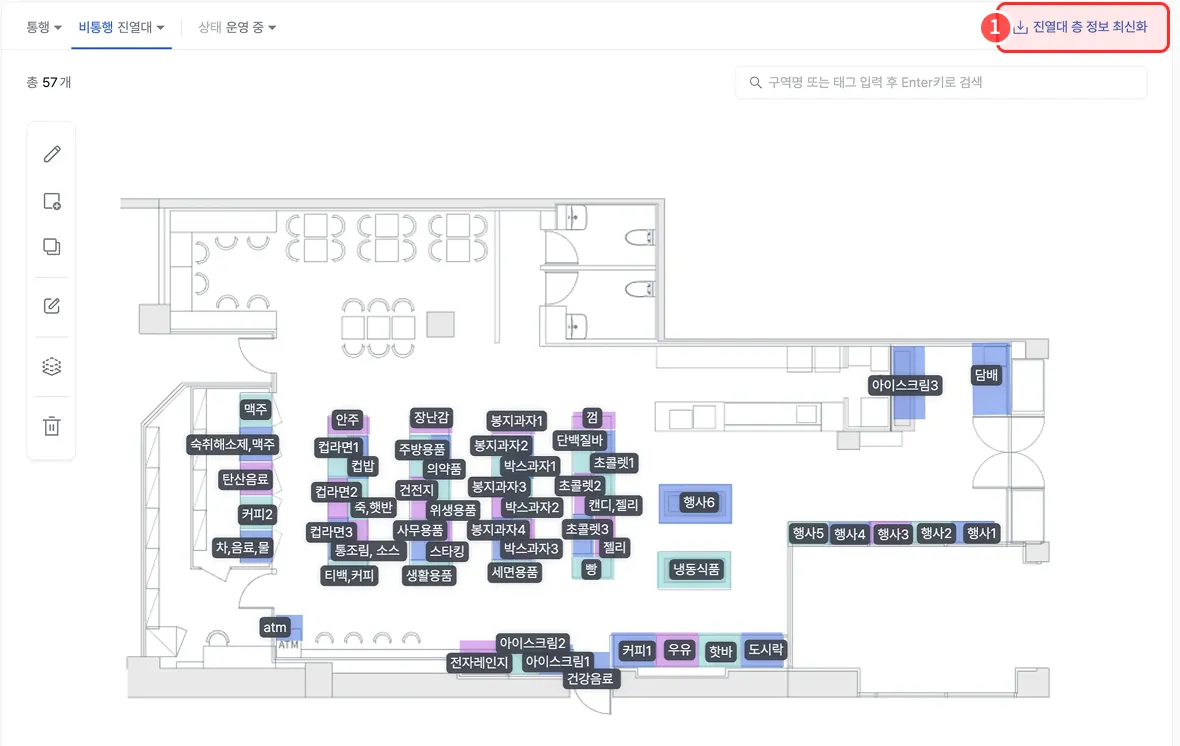
- After updating the shelf level information, click the Update shelf level info button.
- This zone type analyzes behavior around non-walkable shelves.
- Draw zones to match where shelves are placed.
- Set shelf zone names to match the corresponding interest zone names.