

On-Site Control Panel
The On-Site Control Panel is a dedicated on-site screen available in stores where a monitor, keyboard, and mouse are installed with the analysis device. Without logging in to the dashboard, you can check how the device is running, find and register store cameras, and manage its internet connections (Wi-Fi and wired) right at the store.
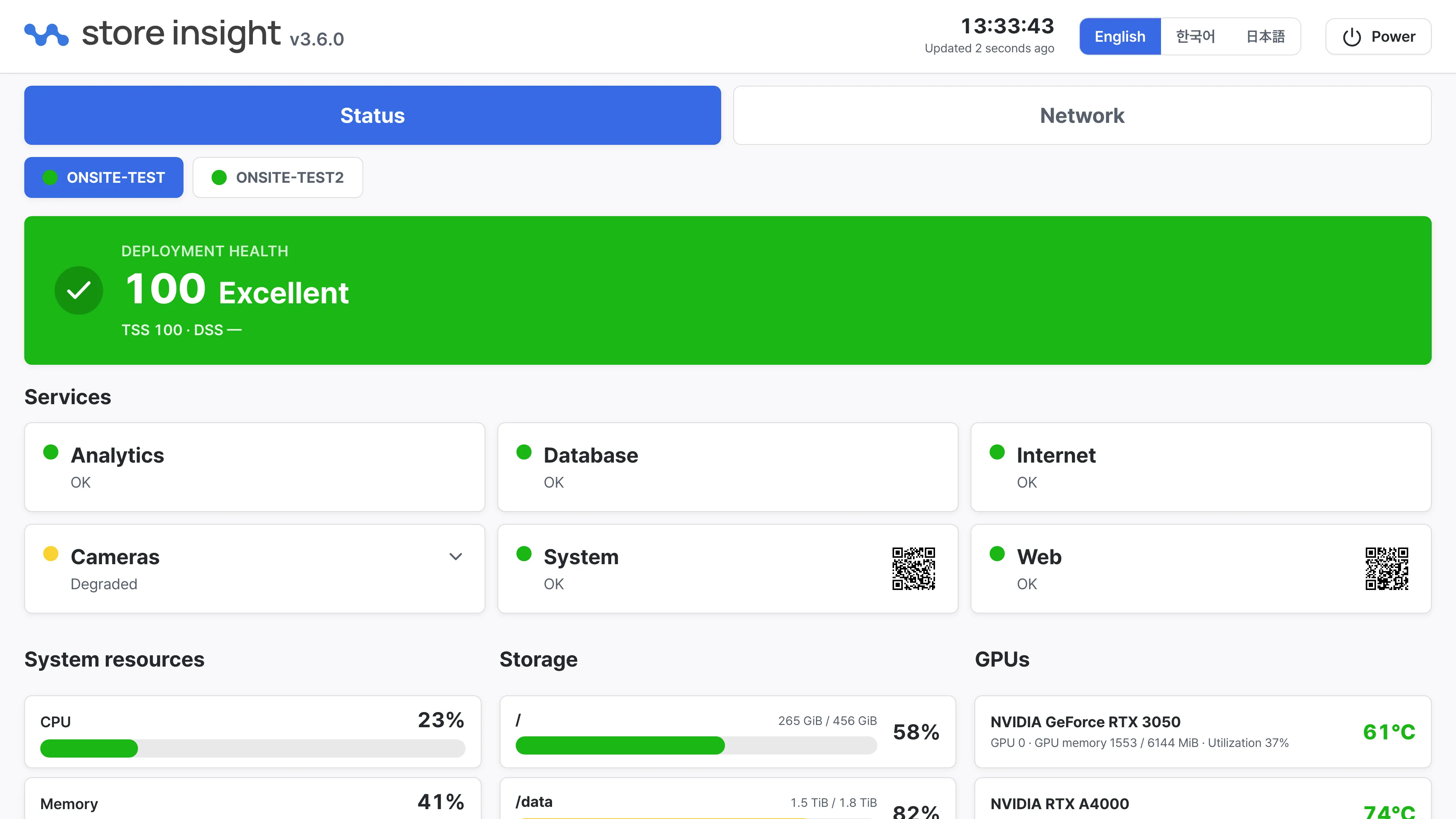
Screen layout
- Top bar — Shows the StoreInsight logo with the software version, the current time, when the data was last updated, the language switcher, and the power button.
- Status tab — Shows the device’s overall health score, per-service status, the state of registered cameras, and hardware usage.
- Network tab — Lets you check wired and Wi-Fi connections, join Wi-Fi networks, and change IP settings.
Everything on the screen refreshes automatically. Status information reloads every few seconds, and the “Updated” indicator in the top bar shows when the data was last refreshed. The screen always stays current without any interaction.
Switching languages
Use the language buttons at the top right to choose between 한국어 · English · 日本語. Your choice is saved and restored the next time the screen turns on.
Power management
The Power button at the far right of the top bar opens the power options dialog.
- Power off — Shuts the appliance down. It must be switched on by hand afterwards.
- Restart — Restarts the appliance. It comes back on its own.
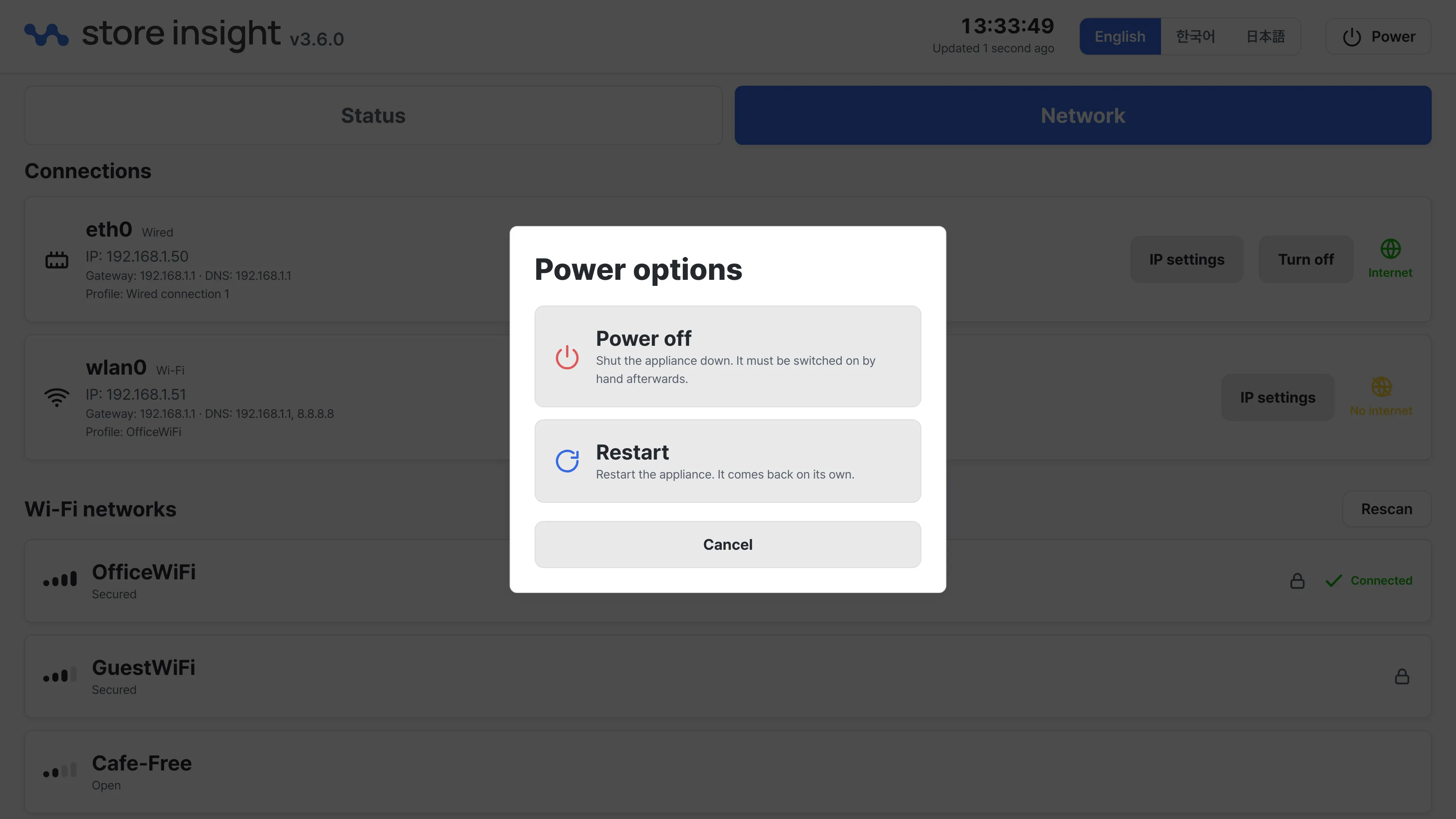
Both actions ask for confirmation before running, so an accidental tap does nothing. When the device comes back on, the On-Site Control Panel returns automatically.
Automatic startup
The On-Site Control Panel starts automatically when the analysis device powers on. After a power outage or a restart, it returns to the panel screen on its own — no action needed.