

Network tab
The Network tab lets you check the analysis device’s internet connections, join the store’s Wi-Fi network, and change IP settings. When the store’s router has been replaced or the network layout has changed, connectivity can be restored right at the store.
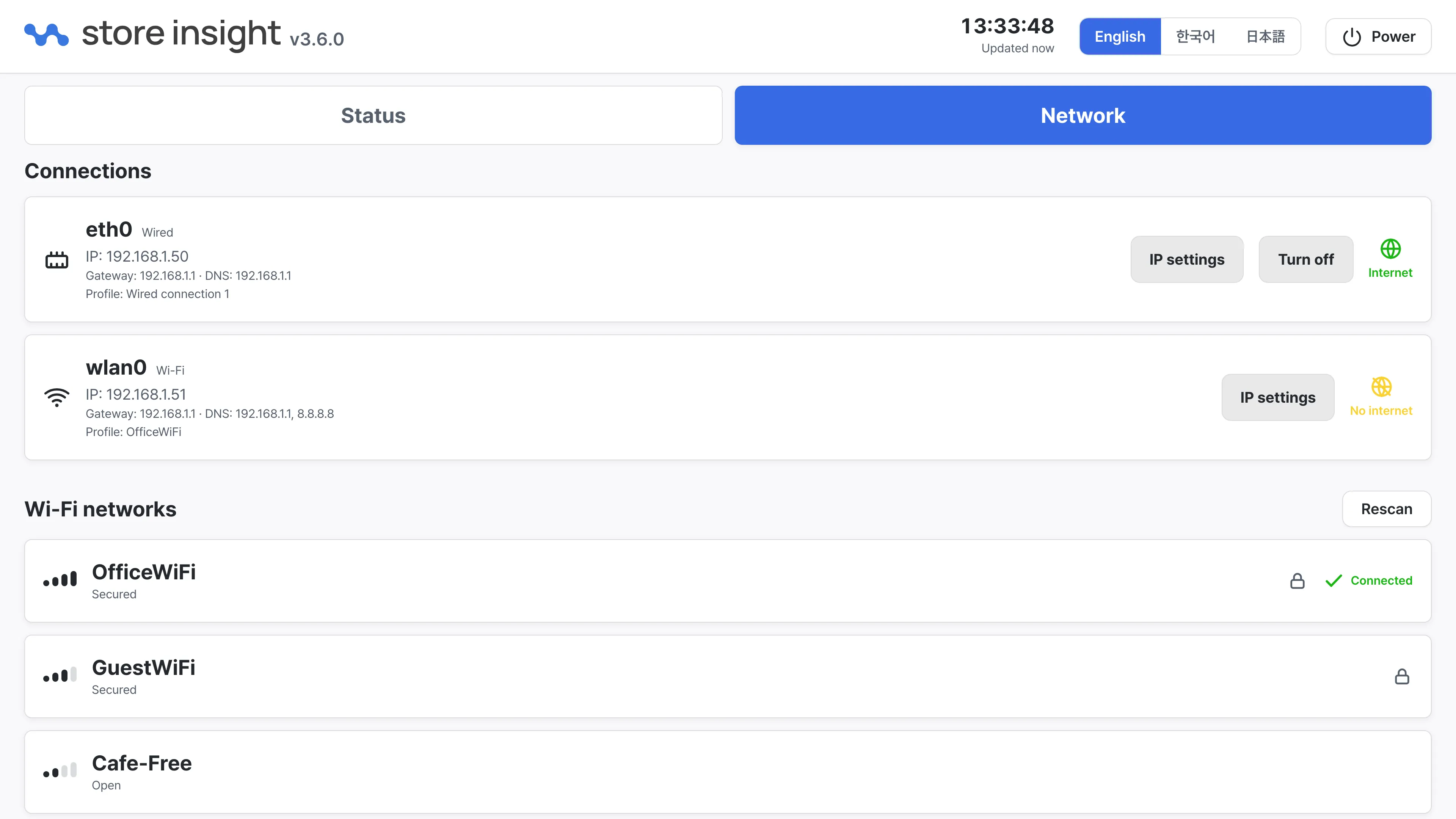
Connections
The network adapters installed in the device are shown as a list.
- Wired — A wired connection over a LAN cable. The current IP address and profile are shown along with the gateway and DNS; if it is not connected, “Not connected” is displayed.
- Wi-Fi — A wireless connection. The name of the network in use and the IP address are shown. If the device has no wireless adapter, the panel says “This appliance has no wireless adapter.”
Each connection also carries a badge showing whether the internet is actually reachable through it, so a plugged-in cable with no internet is easy to tell apart. A wired connection can be brought up or down with the Turn on / Turn off button on the right.
IP settings
The IP settings button on a connection opens the IP configuration dialog.
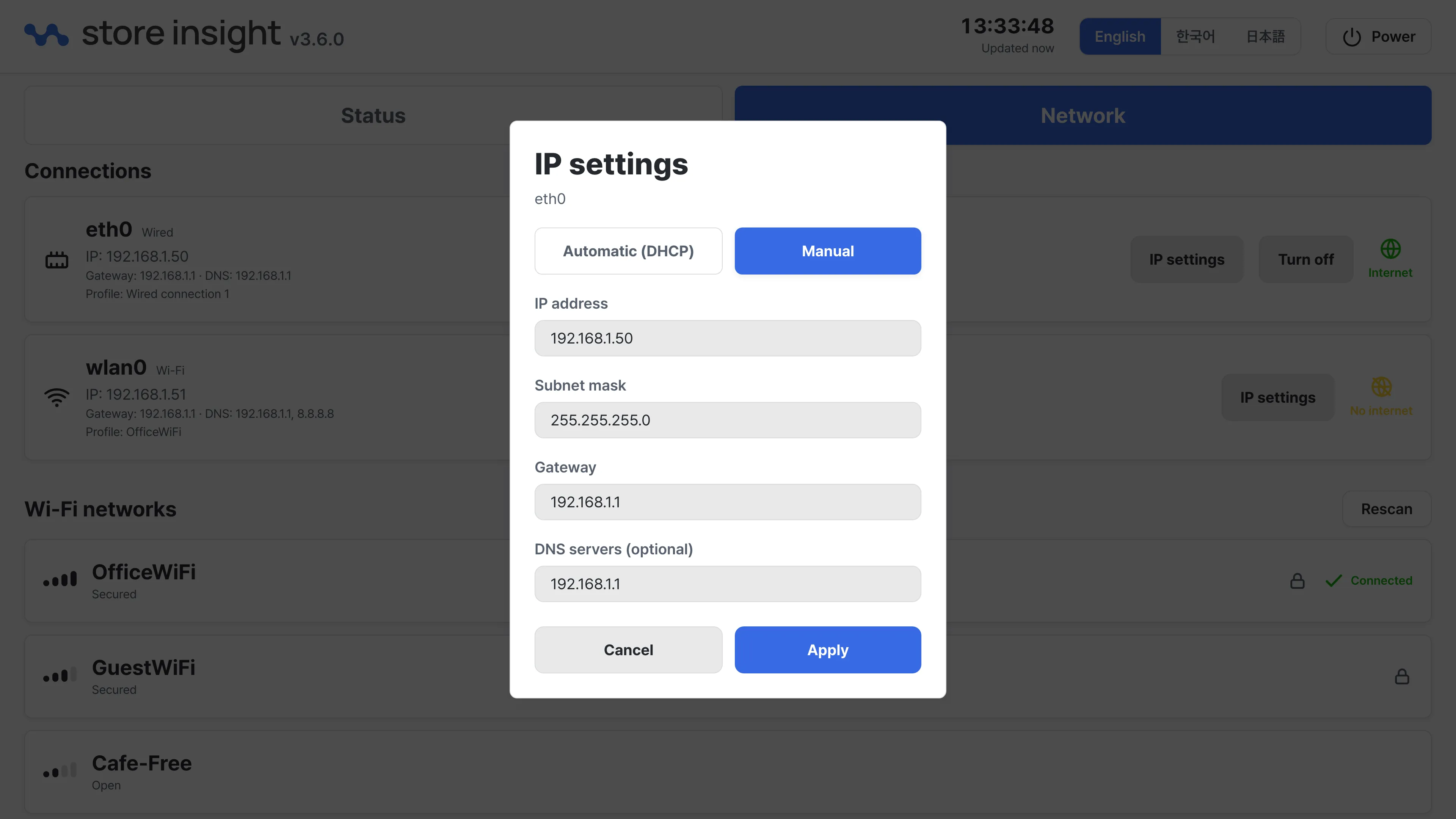
- Automatic (DHCP) — The router assigns the address automatically. This is the default for a typical store network.
- Manual — Enter the IP address, subnet mask, and gateway yourself. DNS servers are optional, up to 6 entries.
Values are validated before applying, and invalid addresses are rejected. For manual settings, use the values assigned by the store’s network administrator.
Wi-Fi networks
Nearby Wi-Fi networks are listed in order of signal strength.
- Each network shows a signal-strength bar plus a Secured (password required) or Open (no password) label.
- The network currently in use shows a Connected mark.
- The list refreshes periodically on its own, and the Rescan button refreshes it immediately.
Joining a Wi-Fi network
- Select the network to join from the list.
- When the Join network dialog opens, enter the password. Passwords must be at least 8 characters; Open networks connect without a password.
- Press Connect. Once the connection completes, the network shows the Connected mark in the list.
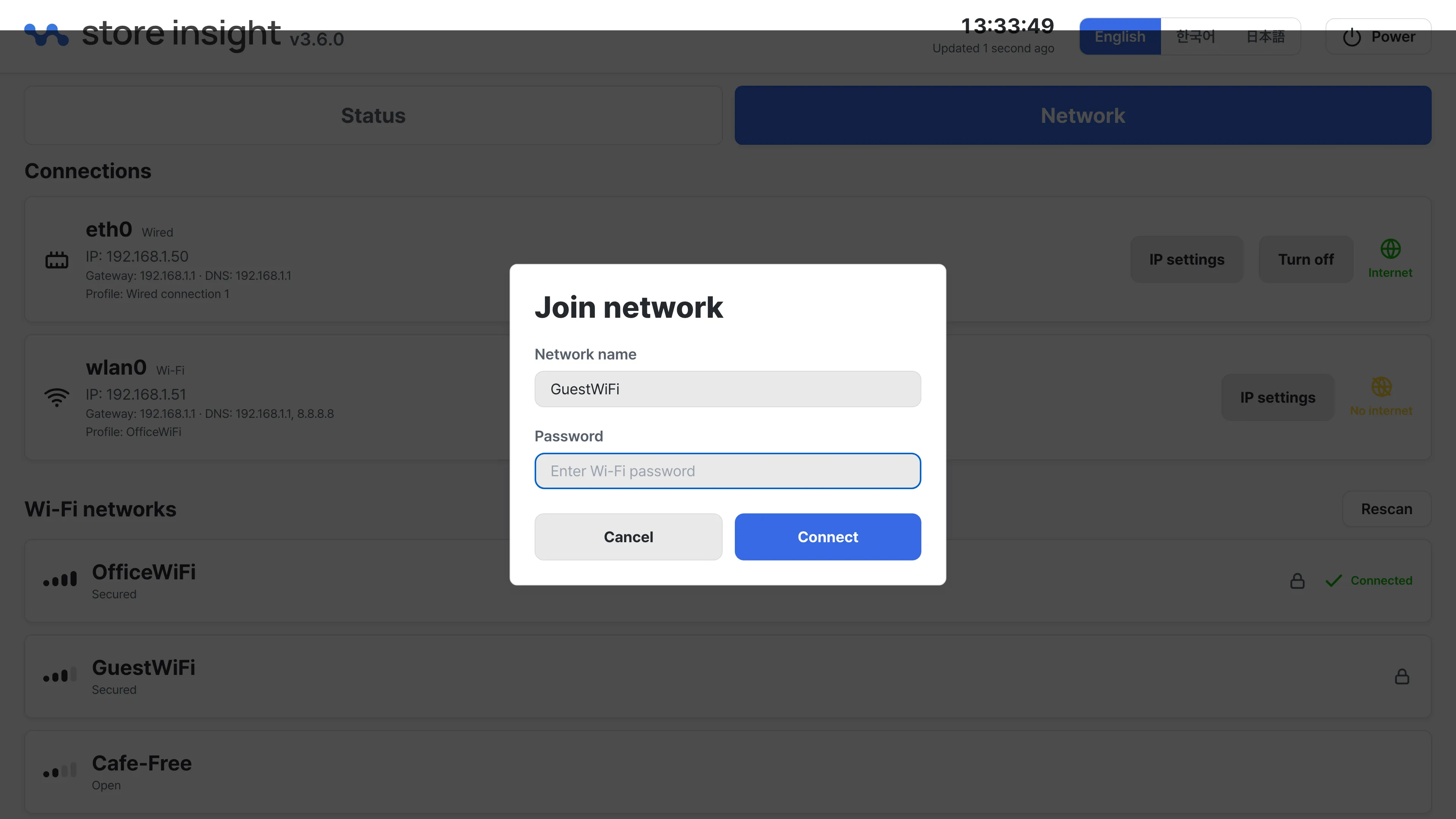
If the connection fails, the message “Could not connect to the network” appears. Double-check the password and try again.