

Zone Config
What it does
- Passage zones are areas along store paths used to analyze visitors’ visits, stays, and pickup behavior.
- No-Passage zones target spaces that can’t be walked through — such as shelves — and let you analyze visitor interest and behavior.
Zone types at a glance
| Category | Zone type | Description | Reports it powers |
|---|---|---|---|
| Passage | General | Divide the store into broad units to capture major movement trends and traffic | Zone analysis / Main path / Inter-Zone Traffic |
| Passage | Interest | Measure stays in front of shelves to understand interest and dwell patterns | Zone interest analysis / Visitor path / Heat map / Customer Touchpoint / Funnel |
| Passage | Counter | Determine purchase conversion based on extended dwelling at the counter | Purchase conversion analysis |
| Passage | Staff | Zones only staff can access — used to exclude staff from analysis | Most reports excluding Line analysis |
| Passage | Dining | Measure how seats are used to analyze occupancy | Seat Occupancy Rate |
| No-Passage | Display stand | Use non-walkable shelves as the basis for analyzing product interest and merchandising effectiveness | Funnel Analysis / Display Shelf Analysis / Display Shelf Heatmap |
Zone Config screen (common)
1. Open the Zone Config screen

Click the Settings button at the bottom-left of the screen to go to the Settings page.
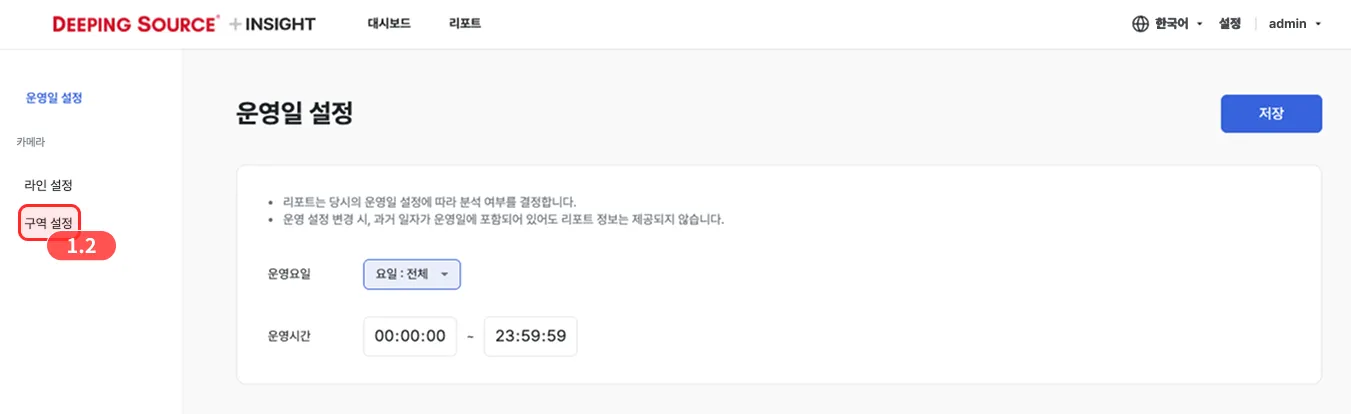
In the left-hand menu of the Settings page, click the Zone Config button to open the Zone Config screen.
2. Zone Config screen layout
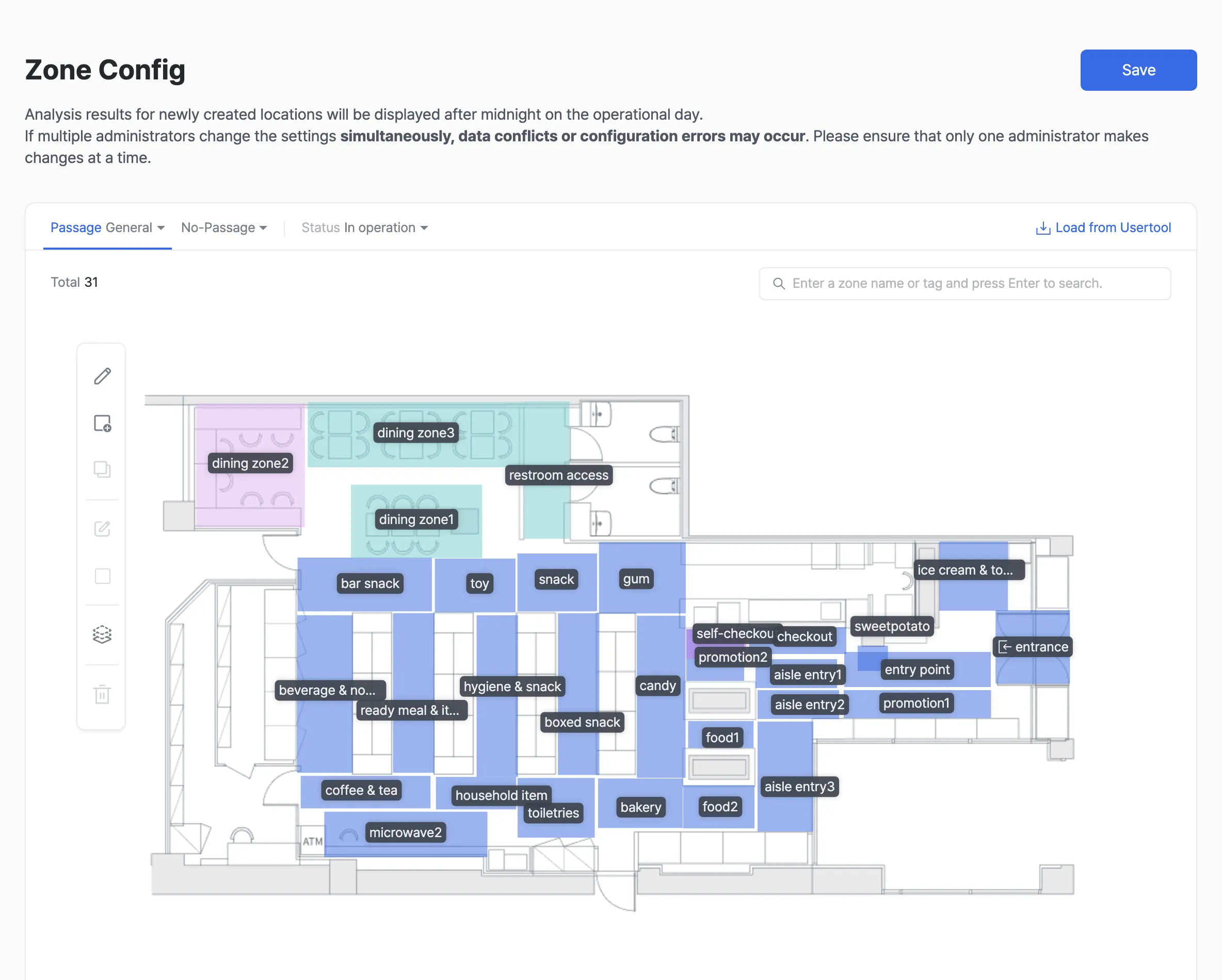
- Pick the Passage / No-Passage category based on the report you want to power.
- Use the In operation / Non-operation filter to show only zones in a given operational state.
- Use the drawing tools to add or edit zones.
- Use the search box to find zones by name or tag keyword.
- Click the Save button to confirm zones.
Drawing tool reference


3. Confirm the zone
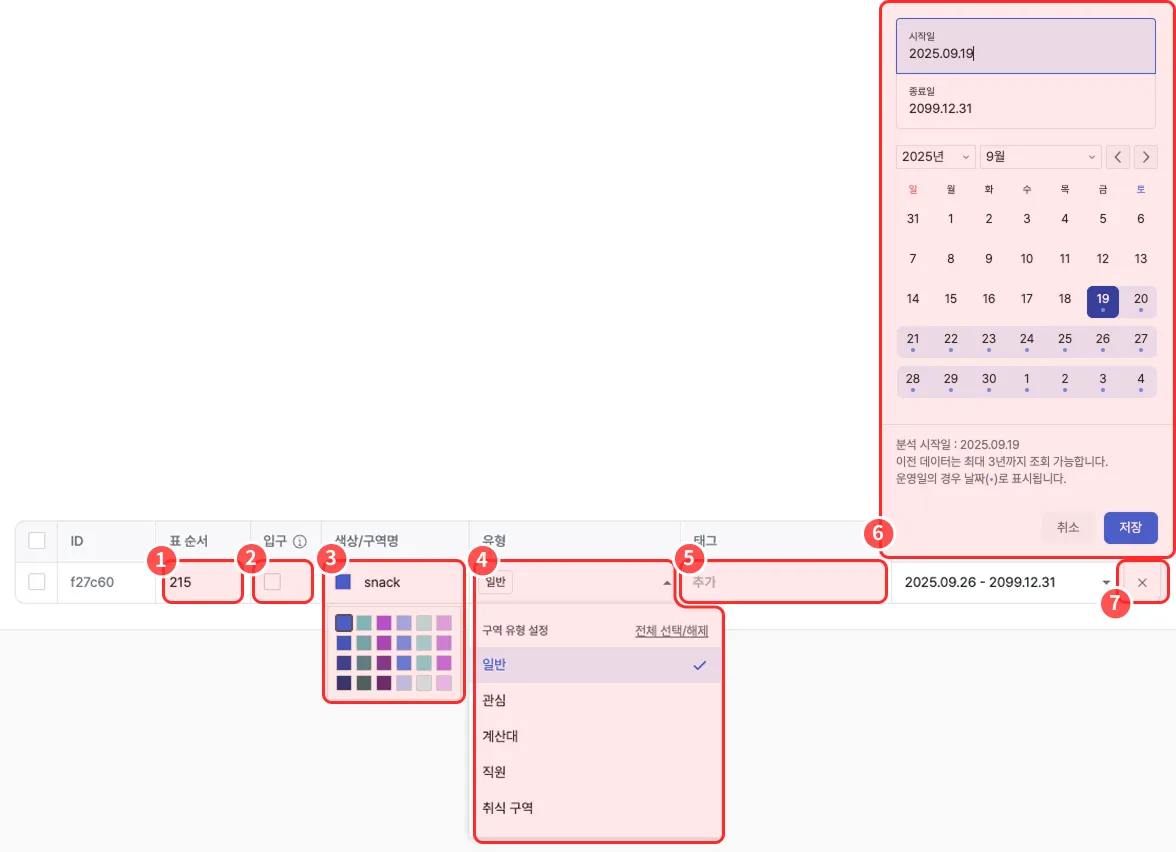
- Edit the Order field to change the order in which data is displayed.
- For zones where customers first enter, tick the entrance checkbox to designate them as entrance zones.
- Once an entrance zone is set, the Main Path Report becomes available.
- You can designate multiple entrance zones.
- Set the zone’s color and name.
- To change or add zone types, select or deselect zone types.
- Changing the type of a saved zone may also apply the new type to reports for past periods. If you deselect a type that a report was aggregated by, the zone may drop out of that report for past periods as well.
- To change the type only from a certain point onward, we recommend ending the existing zone’s operating period and creating a new zone with the new type.
- After picking the zone type, you can add detailed attributes as tags (keywords) to make zones easier to search and manage.
- Tags not assigned to any zone are deleted automatically.
- This field is optional, so you can leave it blank.
- Set the zone’s operating period.
- For new zones, the start date defaults to
todayand the end date to2099.12.31. - Zones whose operating period has ended move to the Non-operation tab.
- For zones you no longer use, we recommend changing the end date instead of deleting. The zone is then excluded only from analysis after the end date, while past data remains in reports.
- For new zones, the start date defaults to
- To delete a zone you’ve drawn, click the X button.
Setting up passage zones
General zones
Reports it powers:
Zone analysis,Main path,Inter-Zone Traffic
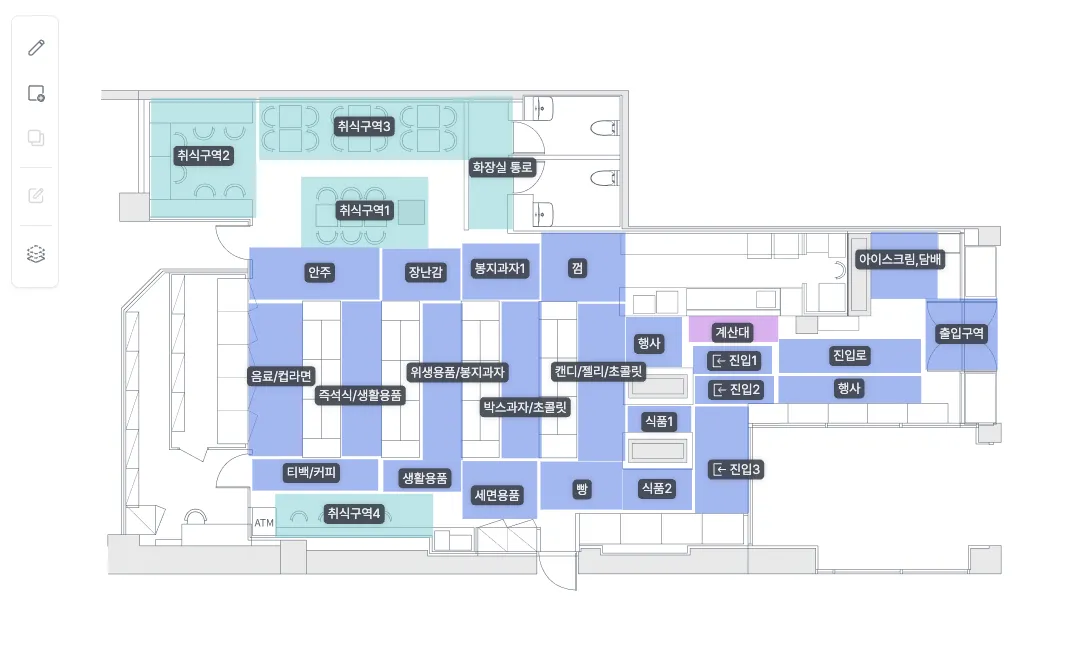
General zones aren’t meant for detailed shelf-level analysis — they capture customers’ larger movement (Flow) across the store.
- Divide the store into broad, non-overlapping units.
- Splitting it into narrow units makes overall traffic harder to read and reduces the meaning of dwell time.
Interest zones
Reports it powers:
Zone interest analysis,Visitor path,Heat map,Customer Touchpoint,Funnel Analysis
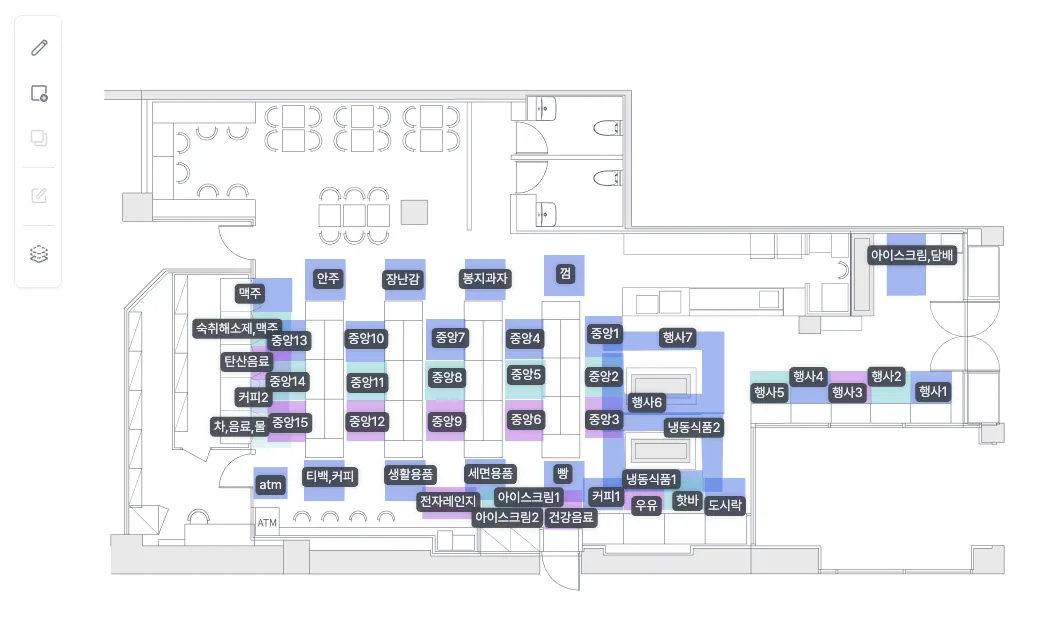
Interest zones are designed to analyze the moments when customers actually face a product or shelf.
- Designate the area immediately in front of a shelf so stay, gaze, and pickup data are recorded.
- Draw the zone right in front of the shelf where visitors examine items in detail as a single interest zone.
Counter zones
Reports it powers:
Purchase conversion analysis
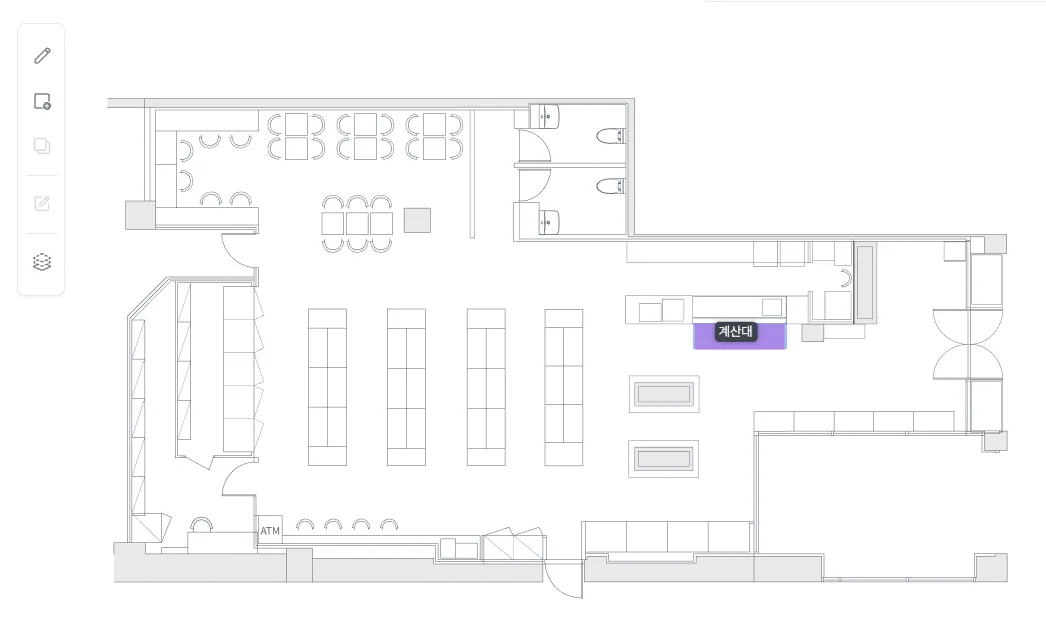
- Determine purchase based on dwelling in the walkable area in front of the counter.
- These are typically drawn at the counter area; dwelling beyond a threshold counts as a purchase.
Staff zones
Reports it powers:
Line analysis,Zone analysis,Visitor path,Main path,Inter-Zone Traffic,Heat map,Heatmap by time,Zone interest analysis
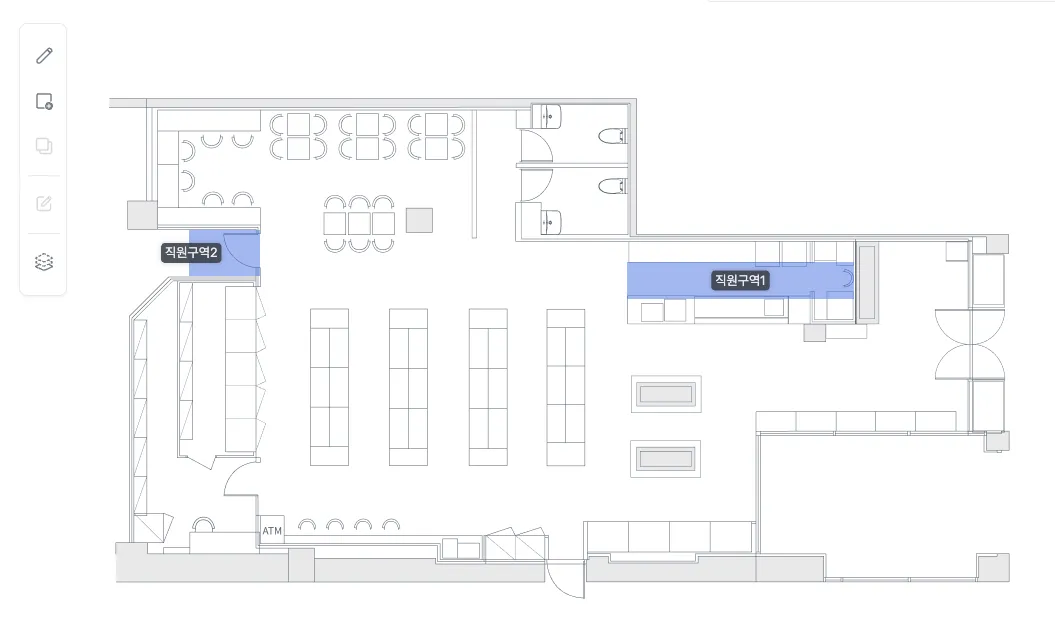
- Use this zone type to determine whether a person detected by CCTV is a staff member.
- Draw it where only staff can access; anyone with a record of passing through is treated as staff.
Dining zones
Reports it powers:
Seat Occupancy Rate
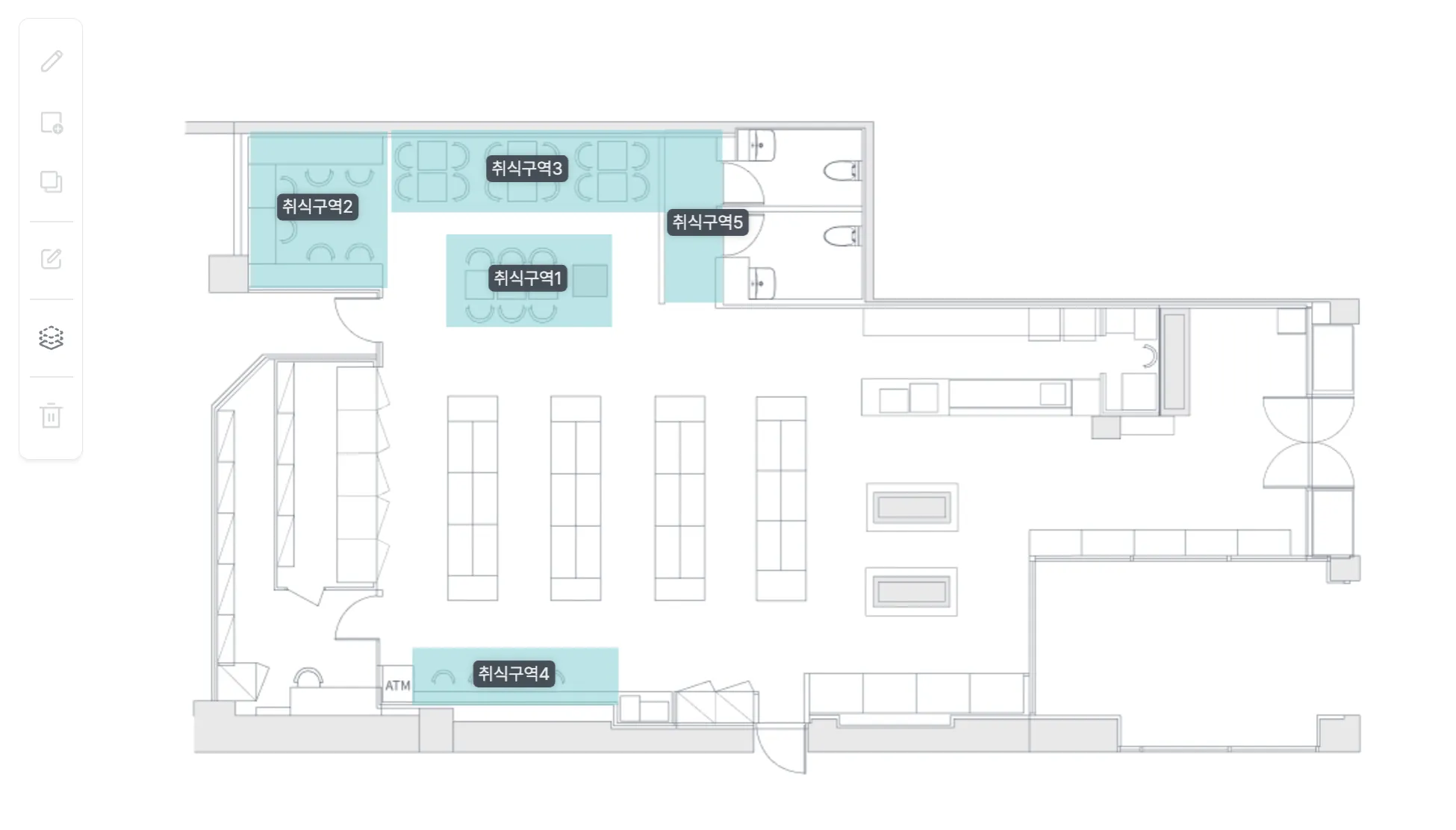
- Use this zone type to see how heavily the seats inside the zone are actually used.
- Draw zones where visitors actually use seats as dining zones.
Setting up no-passage zones
Display stand zones
Reports it powers:
Funnel Analysis,Display Shelf Analysis,Display Shelf Heatmap
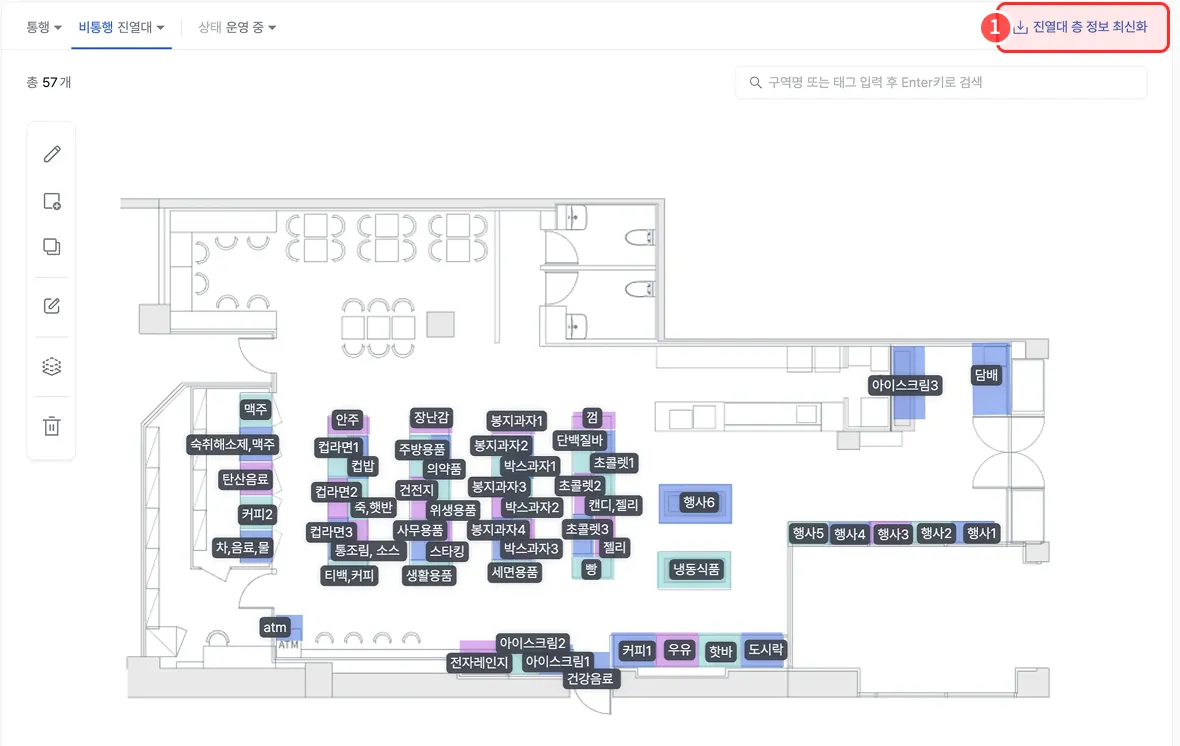
- After updating the shelf floor information, click the Update shelf floor information button.
- This zone type analyzes behavior around non-walkable shelves.
- Draw zones to match where shelves are placed.
- Set display stand zone names to match the corresponding interest zone names.