

Product Display Settings
What it does
- These settings let you analyze visit and interest data per displayed product.
- Draw the display stand (product area) where a product sits and the interest zone where visitors stand to look at it, then link the two in Funnel Zone Config.
- Assign a maker to each product and link makers to customer accounts: only the products of the maker linked to an account are shown. For all other products, the maker name, category, and product name are blurred in reports.
- Check the results in the Visitor Info and Product Interest reports.
Setup order at a glance
| Step | Setting | Settings menu | What you do |
|---|---|---|---|
| 1 | Maker settings | Maker settings (메이커 설정) | Register the makers of displayed products |
| 2 | Draw display stands | Zone Config → No-Passage: Display stand | Set the product area, display period, and maker |
| 3 | Draw interest zones | Zone Config → Passage: Interest | Mark where visitors stand to look at the product |
| 4 | Funnel Zone Config | Funnel Zone Config (퍼널 구역 설정) | Link display stands to interest zones |
| 5 | Account setup | User Management (유저 관리) | Create customer accounts and register viewable makers |
1. Maker settings
Register the makers (manufacturers) of the products on display. The makers registered here appear in the maker name list for display stands and in the viewable makers list for accounts.
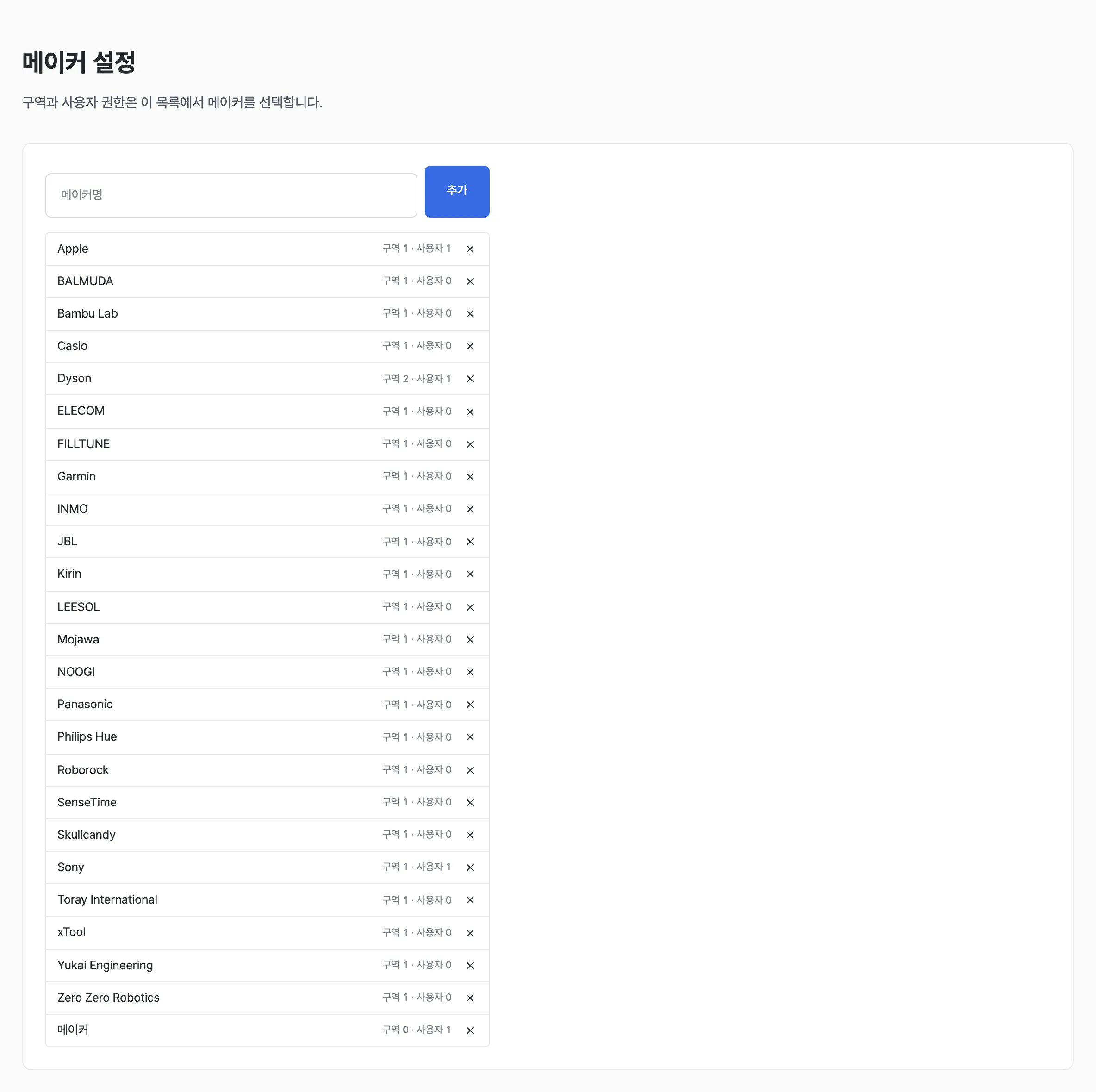
- In the left menu of the settings screen, click Maker settings (메이커 설정).
- Enter a maker name and click Add (추가).
- The list shows the number of zones and users linked to each maker.
- Remove a maker you no longer use with its X button.
2. Draw display stands
A display stand is the area where a product sits. Draw one display stand zone per product (or per group of products you want to analyze together).
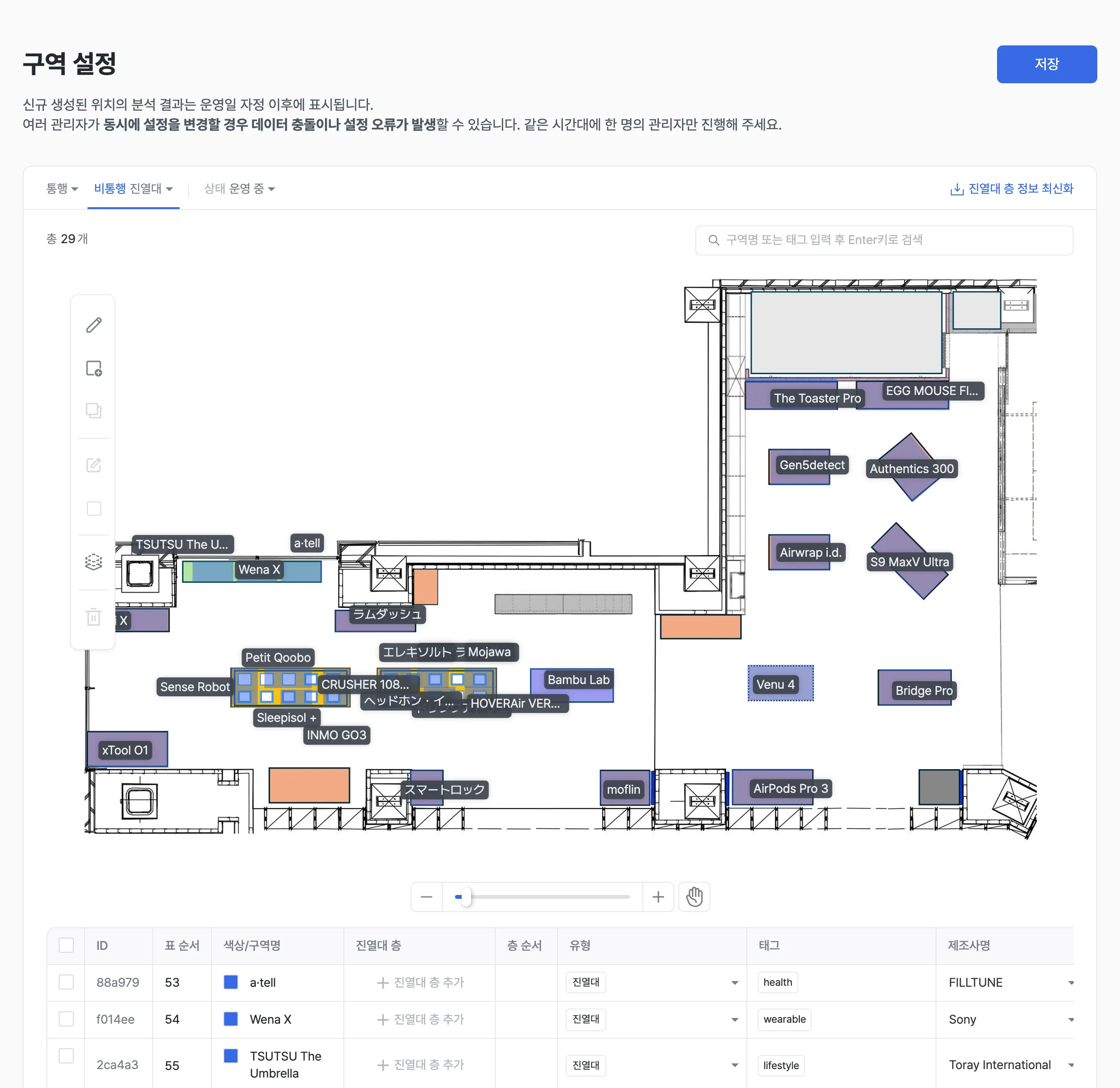
- Sign in with the admin-permission account we provided.
- Open Zone Config and select No-Passage: Display stand at the top.
- Use the drawing tools to mark the product area.
- The product area means the top of the shelf, where no one stands. Do not include the floor area where visitors stand.
- Enter the product name as the zone name. The zone name is shown as the product name in reports.
- Set the period the product will be on display as the operating period.
- Select the product’s maker under maker name.
- Click Save to confirm.
When only the product changes — Duplicate
If the product area (shelf position) stays the same and only the displayed product changes, don’t redraw it — duplicate the existing product area instead.

- Select the existing product’s display stand zone and click the Duplicate tool.
- For the existing zone, change the end date of the operating period to the product swap date. Don’t delete it, so its past data stays in reports.
- Update the duplicated zone’s zone name (product name), display period, and maker name for the new product.
- Go to Funnel Zone Config and link the new duplicated display stand to an interest zone.
Set the display period
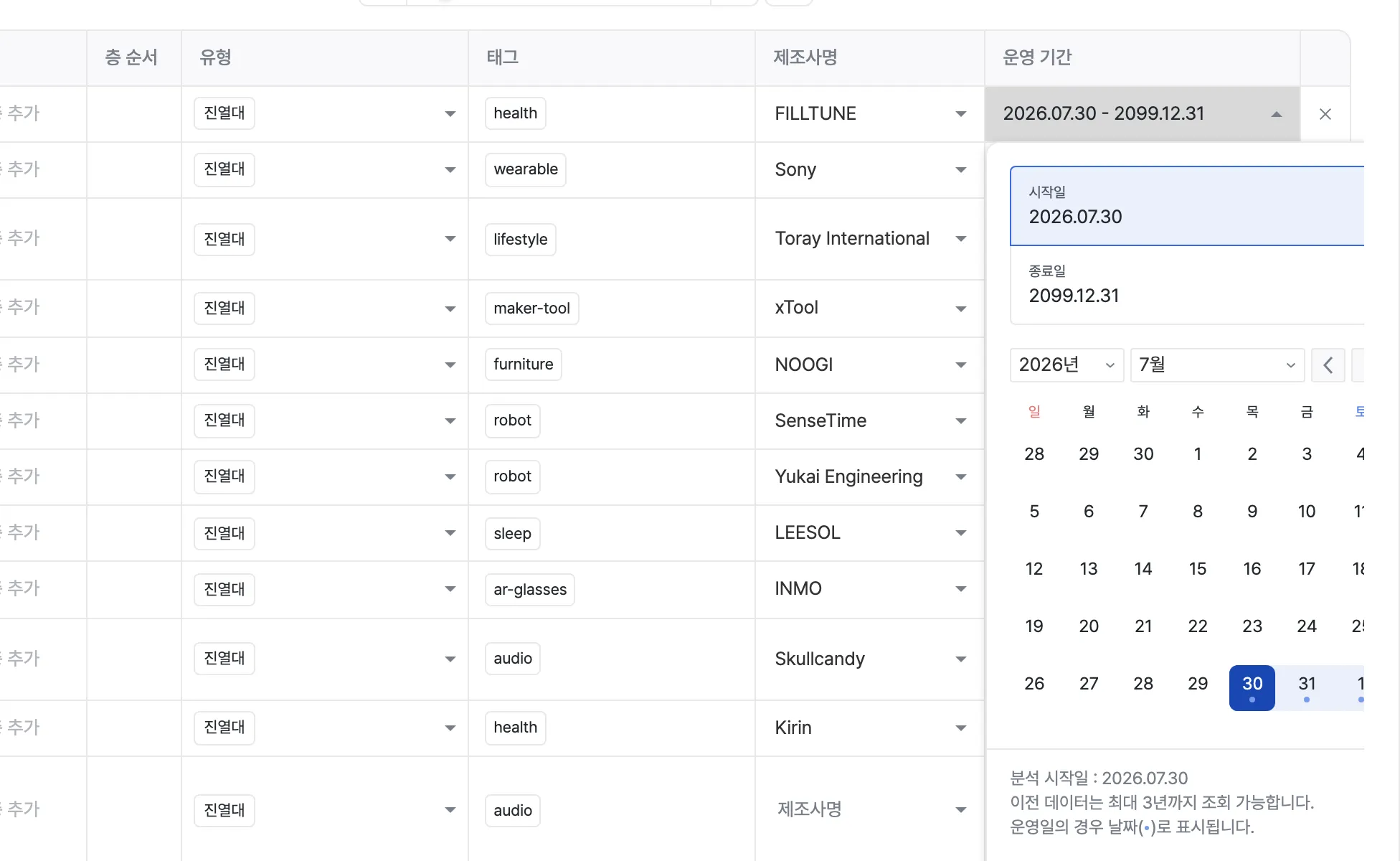
- The start and end dates of the operating period are the product’s display period.
- For a new zone, the start date defaults to
todayand the end date to2099.12.31.
Assign the maker to a display stand
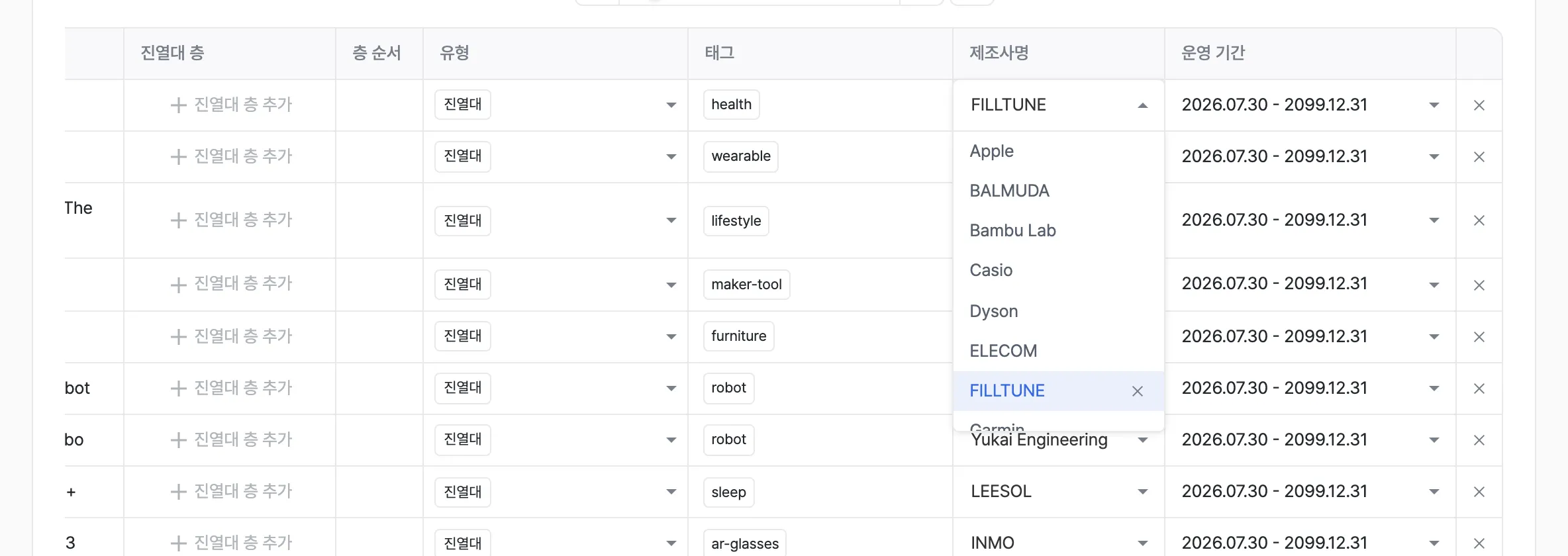
- Scroll the table to the right to find the maker name column.
- Choose from the makers registered in Maker settings. If the maker isn’t in the list, add it in Maker settings first.
- If you enter the product category as a tag, it appears in the category column of the reports.
3. Draw interest zones
An interest zone is the area where visitors can stand to look at a product. Visitors who stand in this area and look at the display stand are counted as that product’s visiting and interested customers.
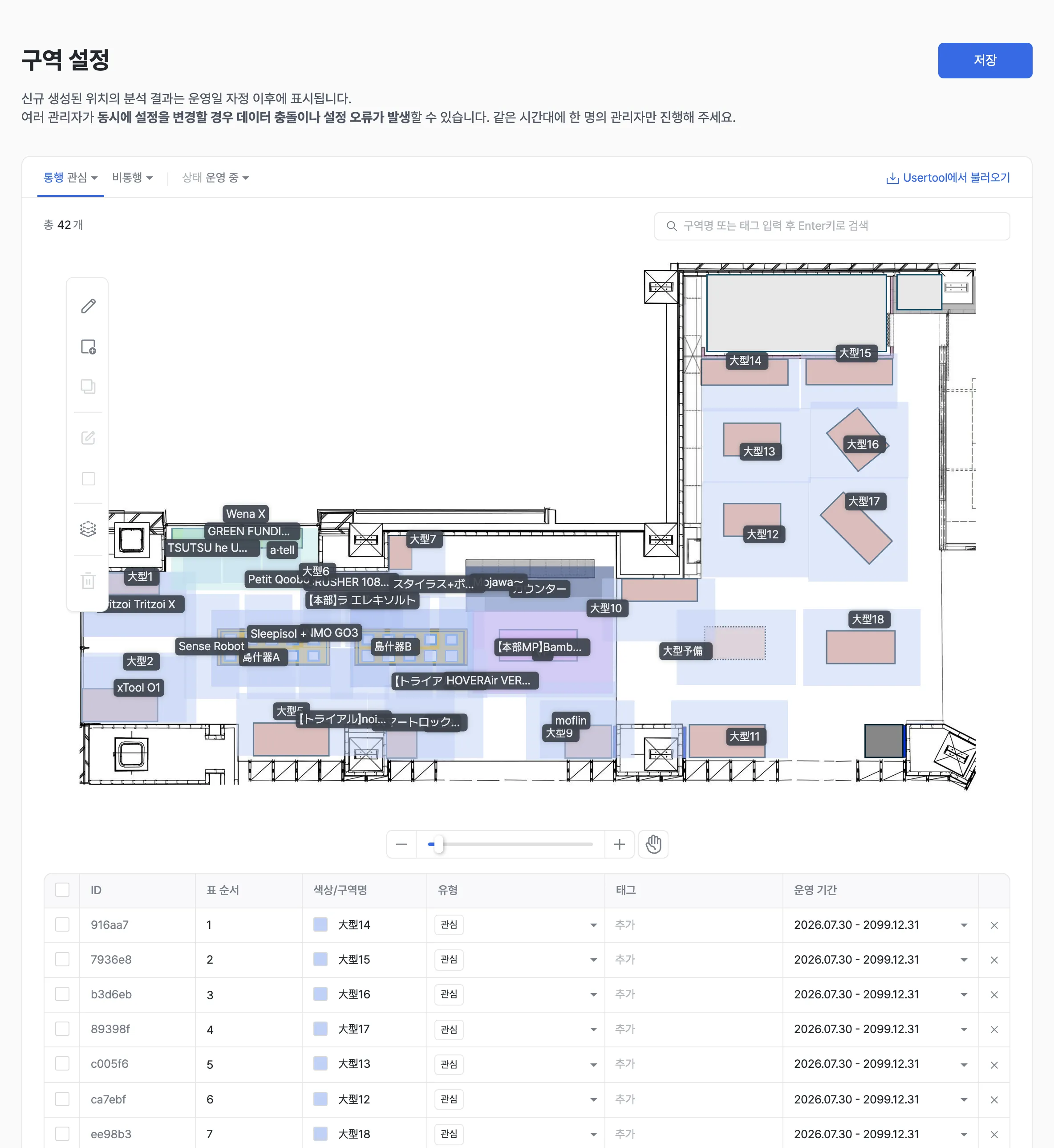
- Sign in with the admin-permission account we provided.
- Open Zone Config and select Passage: Interest at the top.
- Draw the area where visitors can stand to look at the product.
- Set the operating period and click Save to confirm.
- If the product area stays the same and only the product changes, you don’t need to redraw the interest zone. Just link the new display stand to the existing interest zone in Funnel Zone Config.
- Once an interest zone’s operating period has ended, its data is not shown. Make sure the end date doesn’t pass while the display continues.
4. Funnel Zone Config
This setting links display stands to interest zones. To determine where a visitor stood and which product they looked at, each display stand must be linked to an interest zone.
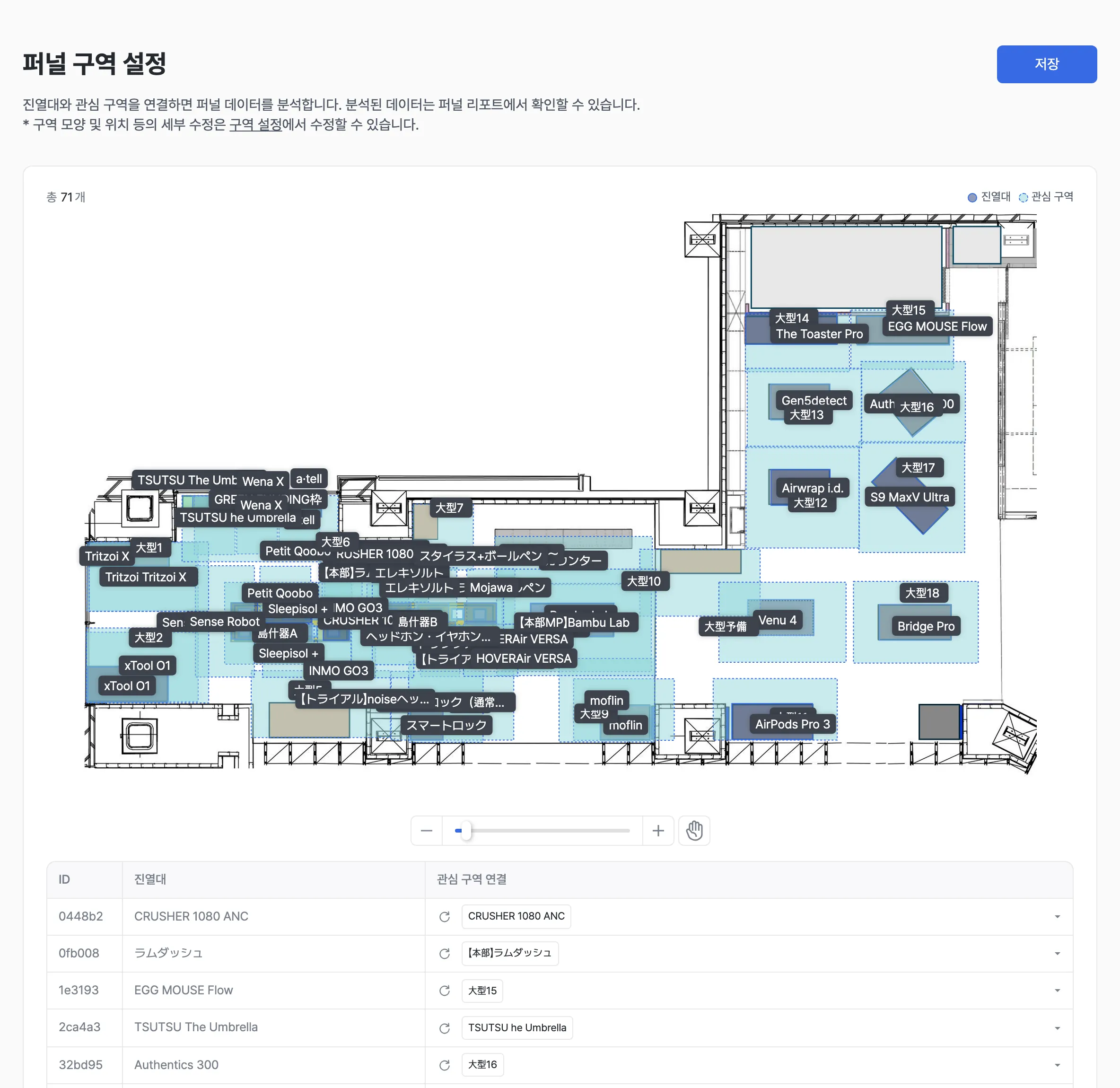
- In the left menu of the settings screen, click Funnel Zone Config (퍼널 구역 설정).
- Find the row of the display stand you want to link.
- In the interest zone link column, select the interest zone where visitors stand to look at that product.
- Click Save to confirm.
- Display stands and interest zones whose period has already ended are not shown. If one is missing from the list, check its operating period in Zone Config.
5. Account setup
Create the account you will hand over to the customer (the maker’s representative) and register the makers the account can view.
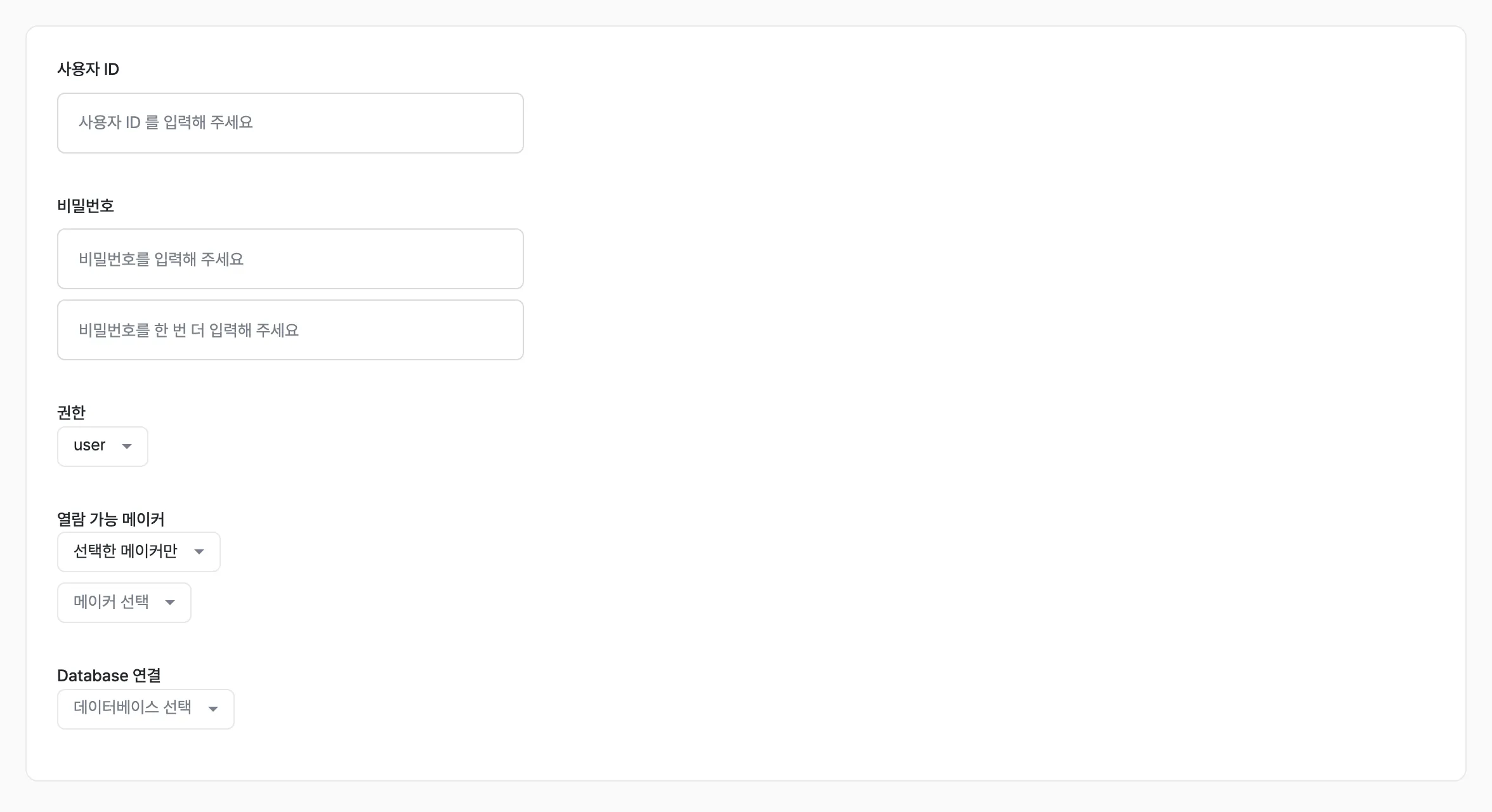
- In the left menu of the settings screen, click User Management (유저 관리).
- Click Add new user.
- Enter the user ID, password, and role.
- Choose the viewable makers (열람 가능 메이커).
- Click Create new user to create the account.
| Viewable makers | Description |
|---|---|
| All makers | Products of every maker are shown. Use this for store operator accounts. |
| Selected makers only | Only the products of the maker linked to the account are shown; for all other products the maker name, category, and product name are blurred. Use this for accounts handed over to customers. |
| No access | Product data cannot be viewed. |
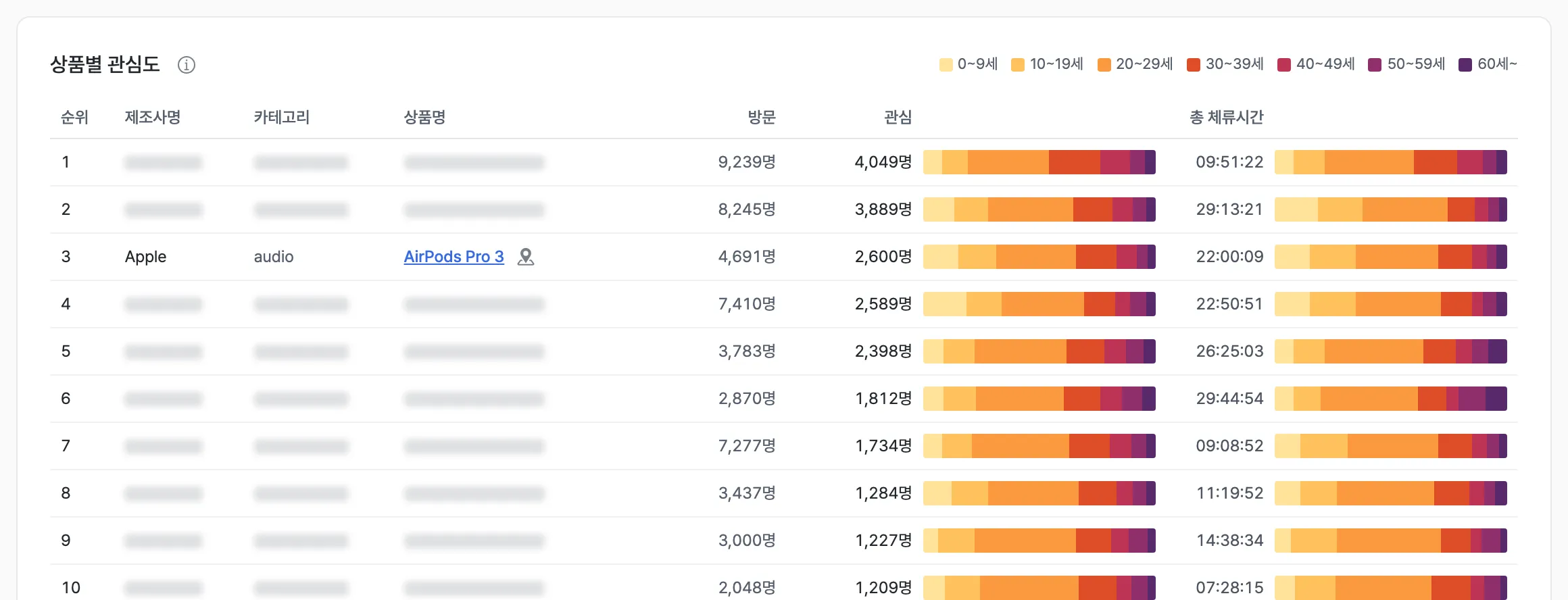
- A customer account shows only the Visitor Info and Product Interest reports, and cannot open the settings screen.
- For other products, the rank and figures are still shown so they can be compared against the linked maker’s products, but the products themselves cannot be identified.
Check the results
- Visitor Info — store-wide visitor overview and the number of interested customers per product
- Product Interest — compare visits, interest, interest rate, and dwell time per product